Control host storage growth in ISP NetFlow deployments
| Field | Value |
|---|---|
| App Note ID | AN-003 |
| Audience | ISP operators, NOC engineers, Trisul administrators |
Summary
At a service provider, the Hosts counter group stores traffic for every IP address it sees, and its storage grows with the number of internet IPs your subscribers talk to. This note sets a three-part policy: define the ISP address space as the home network, store Hosts traffic only for the top 1,000 IPs, and enable the Internal Hosts and External Hosts counter groups. All changes take effect after you restart the probe context.
The problem
NetFlow at a service provider is voluminous. By default, Trisul tracks the usage of every IP address it sees, internal or external, at the bucket resolution of the Hosts counter group. Subscribers talk to a very large number of internet IP addresses, so the hosts traffic storage grows quickly.
Two more issues follow from the default setup:
- Trisul treats only the RFC 1918 private ranges (10.0.0.0/8, 172.16.0.0/12, 192.168.0.0/16) as the home network. An ISP's subscriber ranges are usually public, so Trisul counts them as external.
- Reports that split traffic into internal and external hosts depend on that home network definition.
The fix is a storage policy: keep full detail for your own address space and only the top talkers for the internet side.
How it works
Trisul meters each IP address in counter groups. A counter group keeps a set of meters (Total, Received, Transmit and others) for every key it sees, and writes them out once per bucket. Three settings control how much of that reaches the database:
- Home Networks tells Trisul which IPs belong to your administrative domain. Everything else is external. Out of the box, only the RFC 1918 private ranges are home networks.
- Topper Traffic Only makes Trisul store traffic only for the toppers of a counter group: the top N keys per meter, where N is the meter's top count on the Toppers page. The Hosts counter group's Total meter has a default top count of 50.
- Bucket Size Counter Resolution (ms) sets how often counters are written out. Smaller buckets store more data.
Internal Hosts and External Hosts are built-in counter groups that split hosts by the home network. With the policy in this note, Internal Hosts stores every subscriber IP, while Hosts and External Hosts store only the top 1,000 IPs.
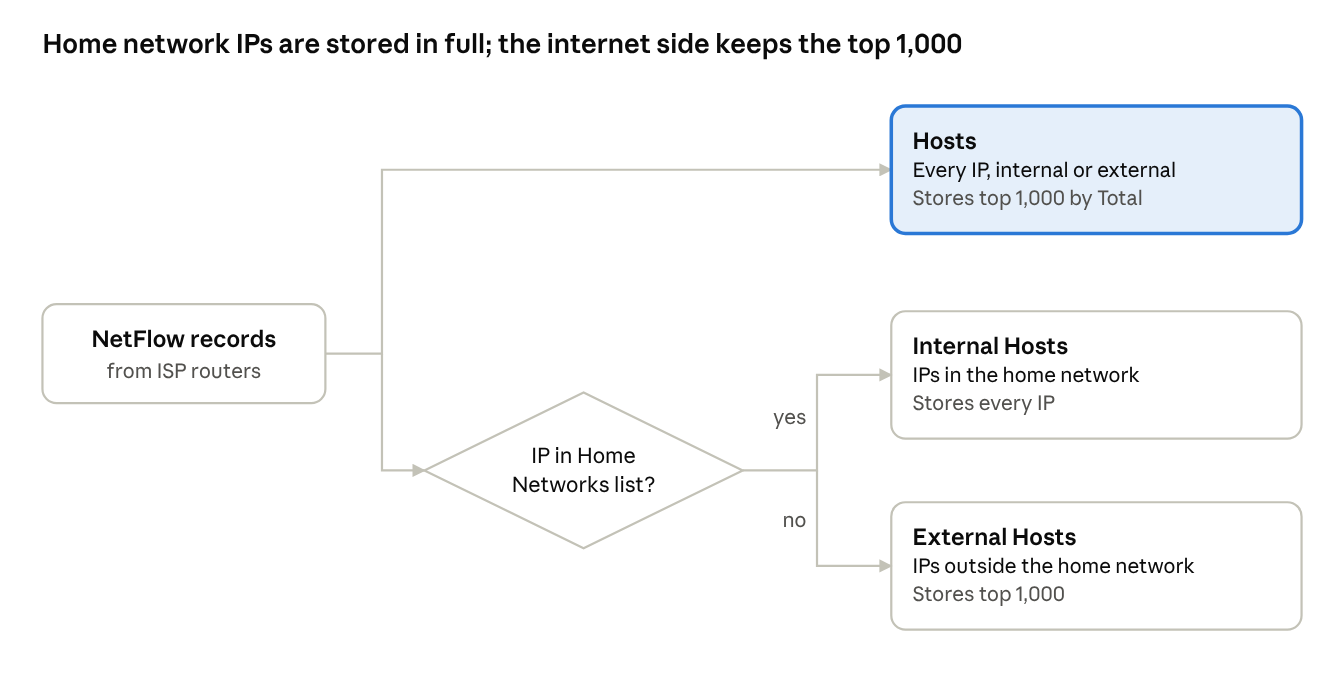
Figure: ISP host tracking policy · 3 counter groups. Home network IPs are stored in full; the internet side keeps the top 1,000.
The probe reads these settings when the context starts, so every change in this note needs a context restart.
Reference: Counter Group Settings, Home Network Concepts
Prerequisites
- Trisul is receiving NetFlow in the context you want to tune (this note uses context
defaultand profileprofile0). - You can log in to the web UI as
admin. - You have the full list of IP ranges that belong to the ISP and its subscribers, as network number and mask or in CIDR format. IPv4 and IPv6 ranges are both accepted.
- You can run
trisulctl_probeas root (or withsudo) on the probe node, and you know the probe ID (this note usesprobe0). - Fewer than 1,024 counter groups are enabled. Trisul does not allow more, and step 12 may enable two.
Procedure
The procedure has four parts. Do them in order and restart the probe context once, at the end.
Part A – Specify the ISP home network
👉 Log in as admin and go to Context: default → profile0 → Home Networks
The Home Networks List shows the configured ranges. Out of the box, it holds the three RFC 1918 ranges.
- Click Add at the top right. The Create Home Network page opens.
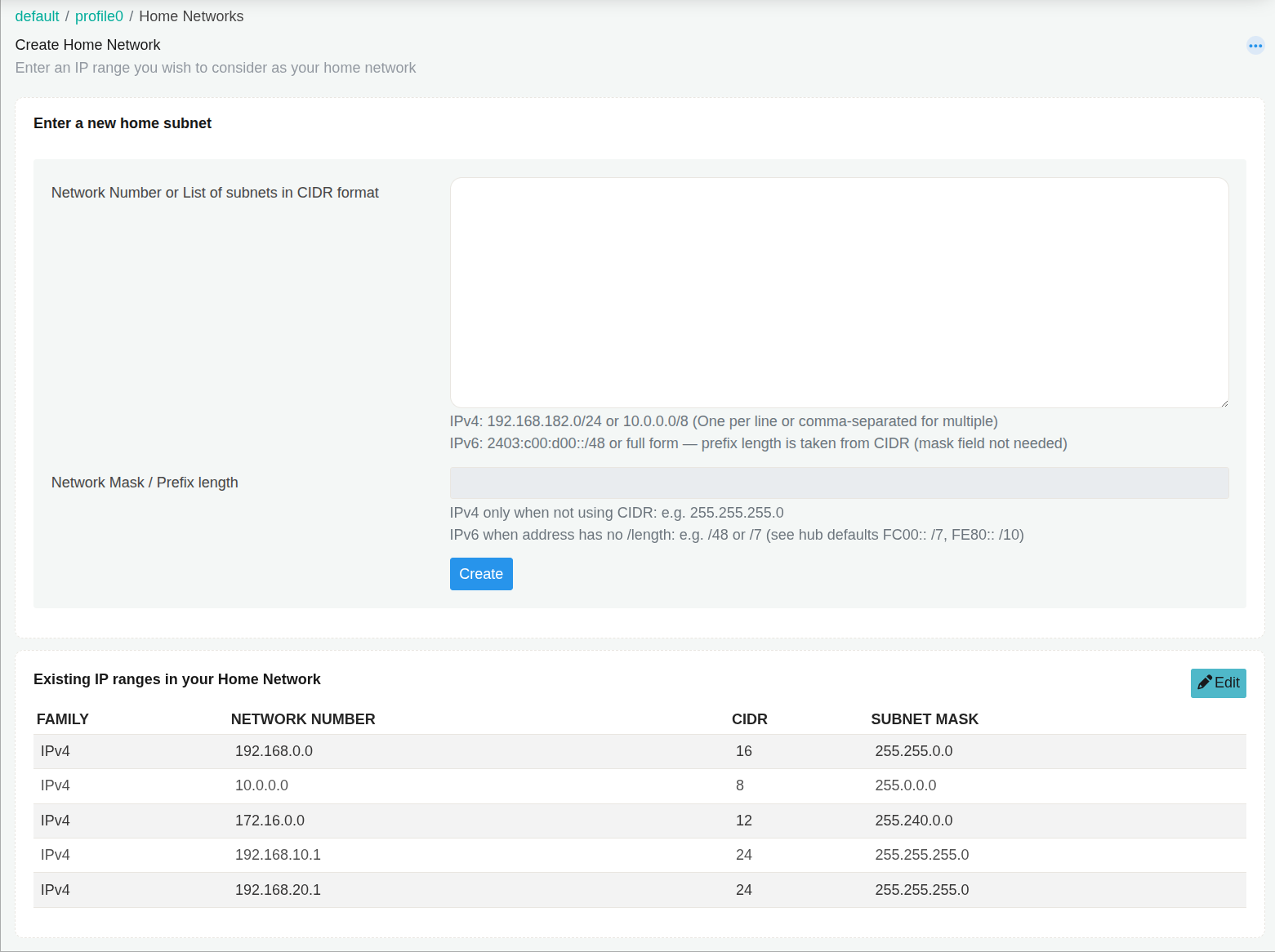
- Fill in the fields to enter one range in either form:
| Field Name | Description |
|---|---|
| Network Number or List of subnets in CIDR format | The network number, for example 203.0.113.0. Or the range in CIDR format, for example 198.51.100.0/24 |
| Network Mask / Prefix length | The mask, for example 255.255.255.0. Leave it empty when the range is in CIDR format. The mask box is locked when the entry is in CIDR format |
- Click Create. Trisul returns to the list and shows
Successfully created. - Repeat steps 1–3 for every IP range that belongs to the ISP.
To add many ranges at once, paste them into Network Number or List of subnets in CIDR format in CIDR format, one per line or comma separated. IPv6 ranges take their prefix length from the CIDR. If some entries are rejected, Trisul adds the valid ones and shows Some home networks not added. Please check your inputs.
Check: the list shows each range you added, with its CIDR and mask, and the Total count in the list header goes up by one per range.
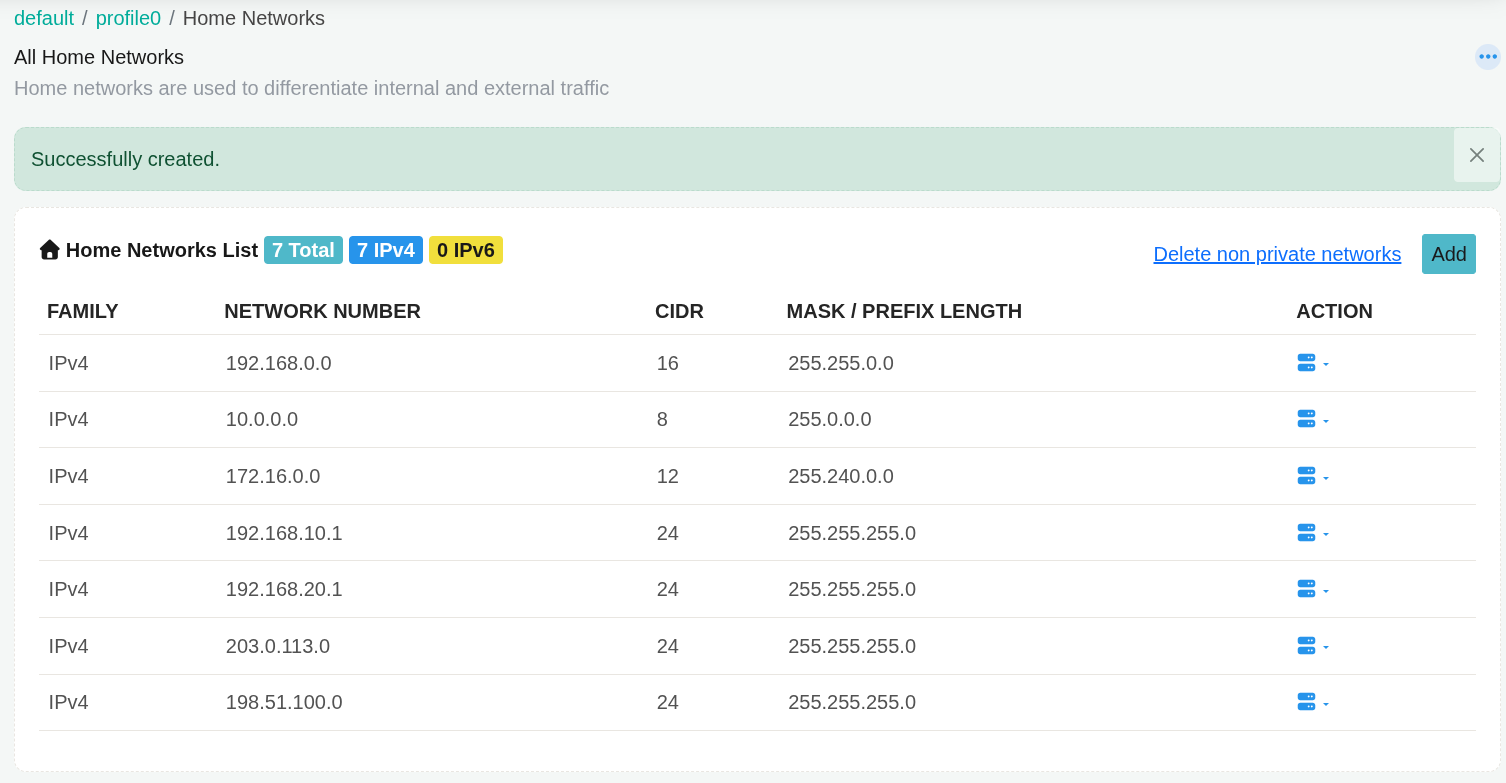
Reference: Home Networks
Part B – Cap the Hosts counter group at the top 1,000 IPs
👉 Go to Context: default → profile0 → Counter Groups
-
Type
hostsin the filter box to shorten the list.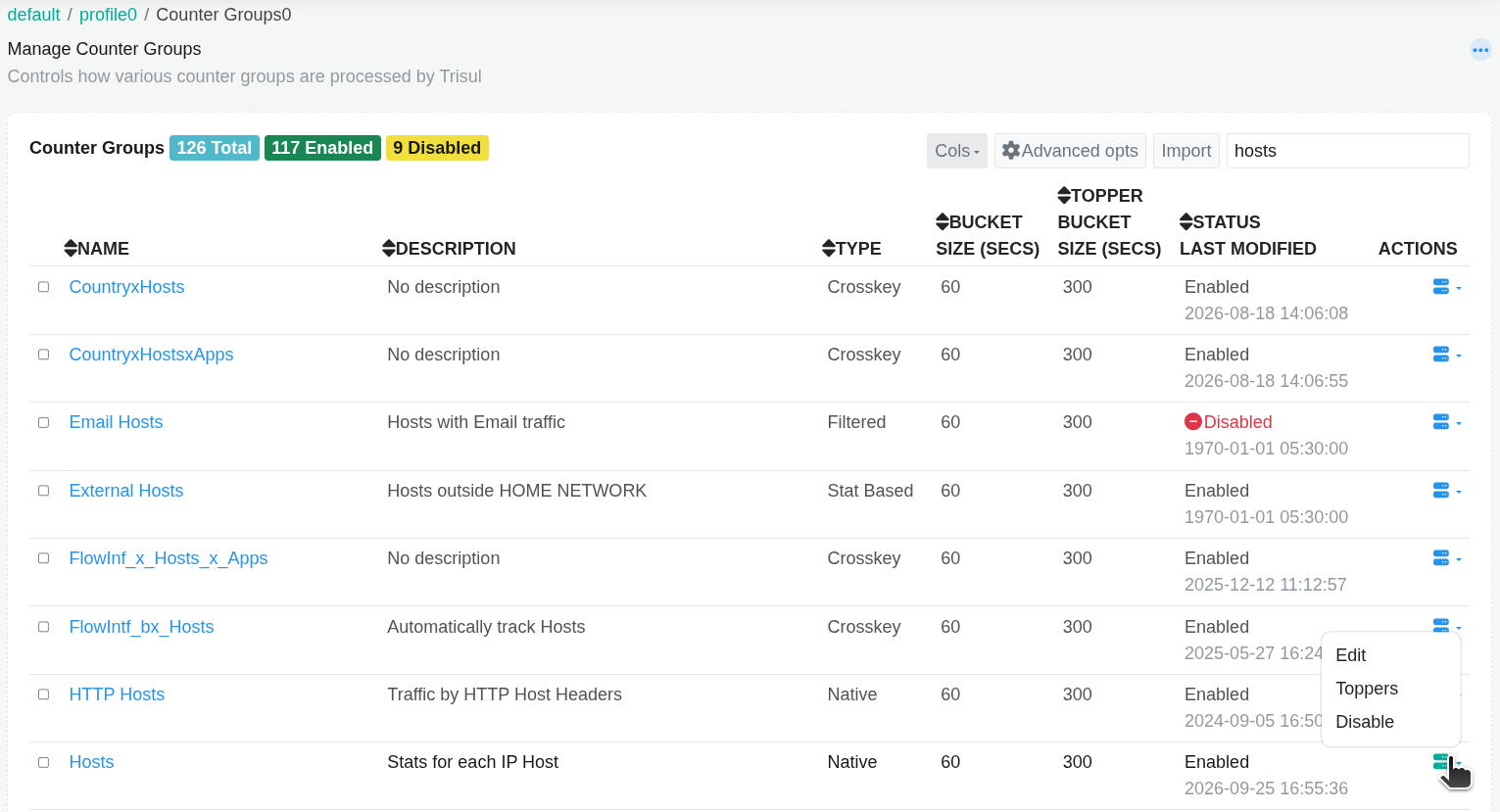
-
Click Hosts. The Edit Counter Group page opens.
-
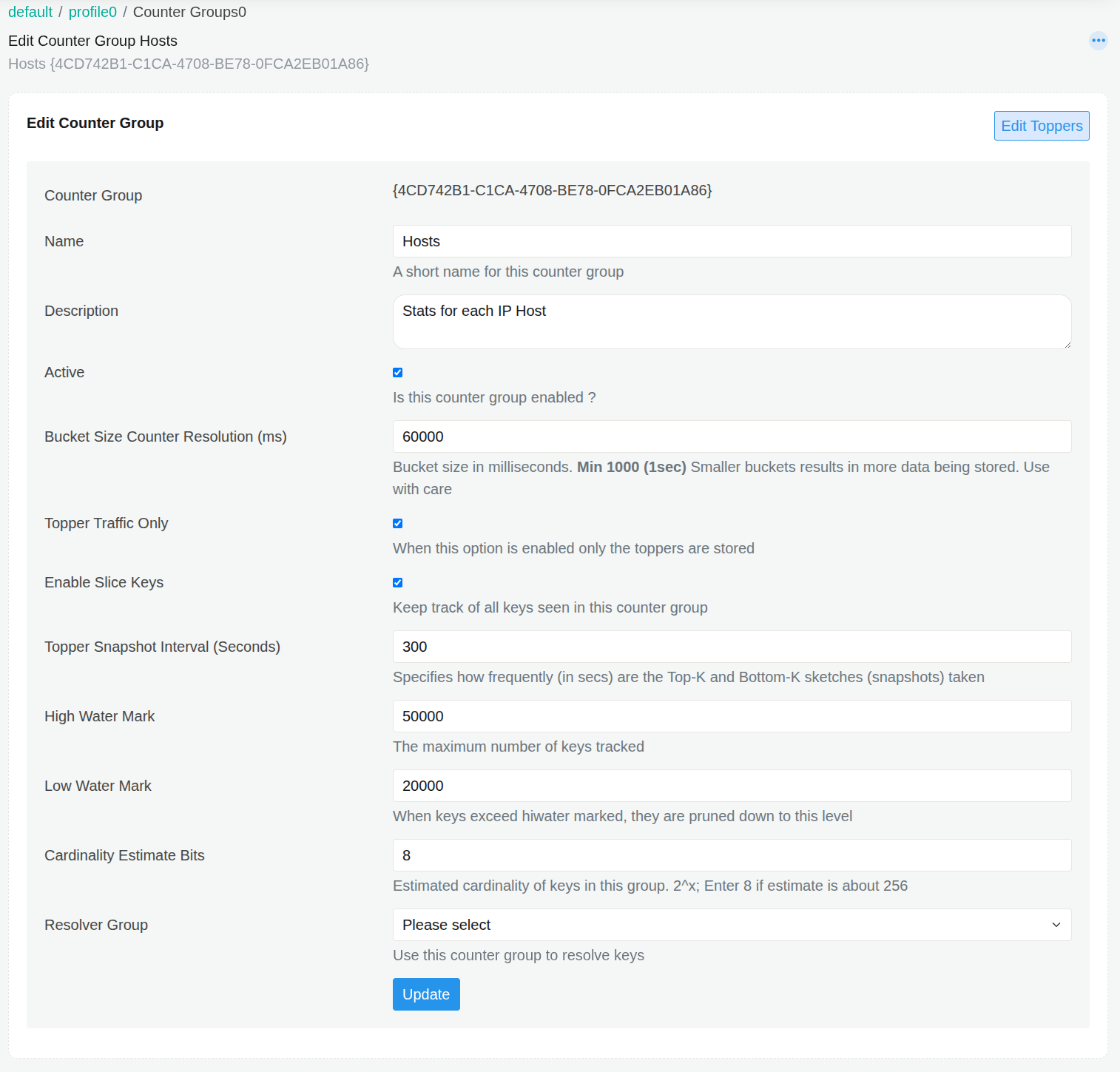
Fill in the fields:
| Field Name | Description |
|---|---|
| Topper Traffic Only | Select |
| Bucket Size Counter Resolution (ms) | Optional: to change the resolution to 5 minutes, set 300000. The default is 60000 (60 seconds) and the minimum is 1000 |
- Click Update. Trisul returns to the counter group list and shows
Successfully saved. - Open the topper policy for Hosts: click the action button on the Hosts row and choose Toppers, or click Edit Toppers on the Edit Counter Group page. The Edit Topper Policies for counter group Hosts page opens.
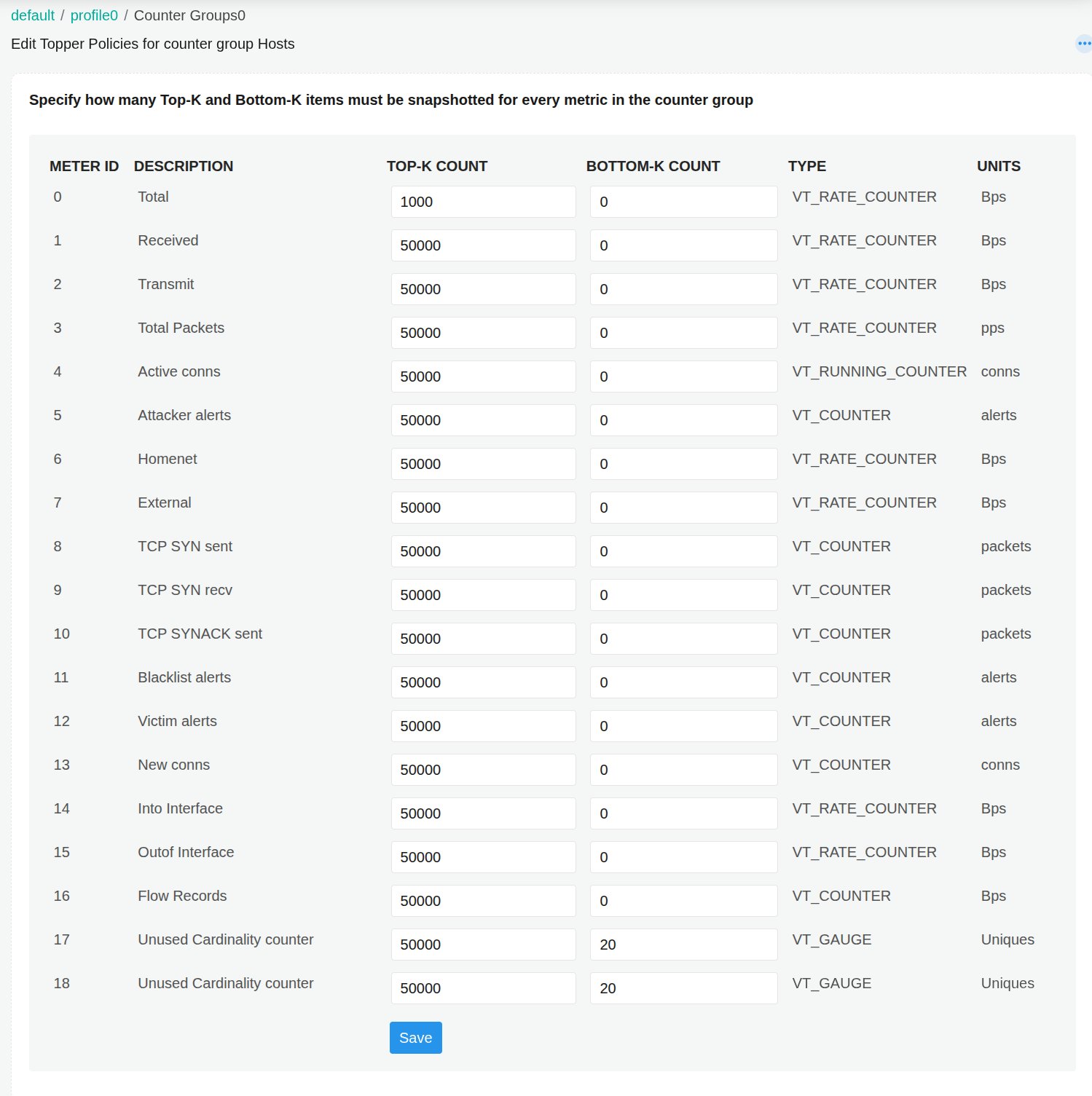
- Fill in the fields, and leave the other rows unchanged:
| Field Name | Description |
|---|---|
| TOP-K COUNT of meter 0 (Total) | 1000 |
- Click Save. Trisul returns to the list and shows
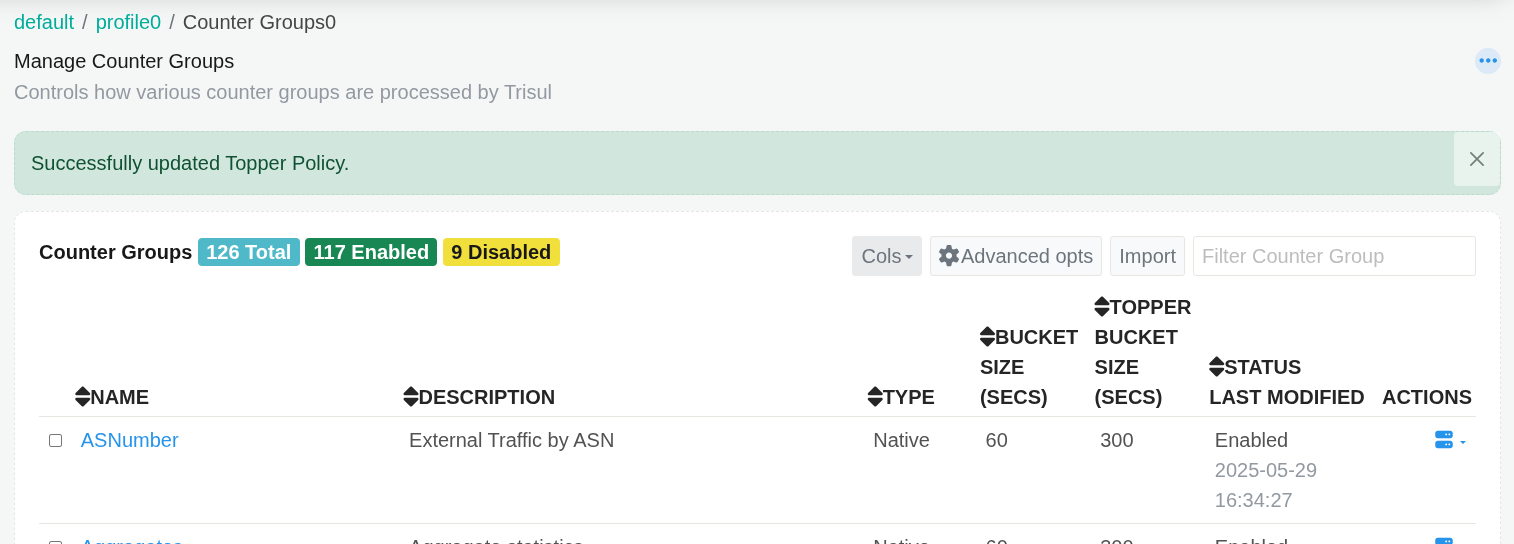
Successfully updated Topper Policy.
Check: reopen the Toppers page for Hosts. The Total row shows 1000.
To apply one bucket size to every counter group instead of setting Bucket Size Counter Resolution (ms) in step 7, click Advanced opts on the counter group list and set a bucket size for all counter groups.
Reference: Counter Group Settings
Part C – Enable the Internal Hosts and External Hosts counter groups
- In the counter group list, find Internal Hosts and External Hosts. If the Status column shows Disabled, enable them with the action button, or select both check boxes and choose Enable. Trisul confirms with
Selected counter group <name> activated successfully(orSelected 2 counter group(s) activated successfully.for a bulk enable). If both already show Enabled, go to step 13. - Open the topper policy for External Hosts (action button → Toppers) and set the TOP-K COUNT of Total to
1000, as in steps 9–11. Then open External Hosts and check that Topper Traffic Only is selected; if it is not, select it and click Update. The counter group reference lists a default Total count of 50, but a running system may hold another value, so always check it. You can set a higher count, for example5000, to keep more external IPs.
Reference: Internal Hosts, External Hosts
Part D – Restart the probe context
- On the probe node, run as root:
sudo trisulctl_probe restart context default@probe0
Replace probe0 with your probe ID. The command stops and then starts the context processes on that probe.
Reference: trisulctl
Verify the result
- The restart reports both halves as successful.
$ sudo trisulctl_probe restart context default@probe0
   * found  trisul-probe  /usr/local/etc/trisul-probe/domain0/domain.xml
   * found  trisul-geo    /usr/local/etc/trisul-geo/domain0/domain0.xml
   * connecting to domain0 at ipc:///usr/local/var/lib/trisul-probe/domain0/run/ctl_local_req
stop context default@probe0
   + probe0               stopped Successfully stopped context processes: default@probe0
 start context default@probe0
   + probe0               started Successfully started context processes: default@probe0
Log from default@probe0 context default
- In Context: default → profile0 → Home Networks, every ISP range is listed with its CIDR and mask.
- In Context: default → profile0 → Counter Groups, Internal Hosts and External Hosts show Enabled in the Status column. Both are listed with type Stat Based.
- Open Hosts in the counter group list. Topper Traffic Only is selected, and its Toppers page shows
1000in the Total row. Do the same check for External Hosts. - After a full day of data, go to Context: default → Admin Tasks → DB Status and compare the per-day storage with the days before the change. Each day is usually stored as two slices, so add the slices with the same date. See Tuning database usage.
Troubleshooting
| Symptom | Cause | Fix |
|---|---|---|
Error : accessing ipc:///usr/local/var/lib/trisul-probe/domain0/run/ctl_local_req msg=Permission denied, then You must connect to a domain first | trisulctl_probe was run as a non-root user, so the context was not restarted | Run the command with sudo or as root |
| You cannot type in Network Mask / Prefix length | The entry in the top box is in CIDR format, which locks the mask box | Expected: leave the mask empty, the prefix length comes from the CIDR |
Entry rejected with subnet mask required, invalid mask or invalid CIDR | A plain address without a mask, a malformed mask, or a prefix length outside 0–32 | Add the mask, or write the range in CIDR format |
Some home networks not added. Please check your inputs | Some entries in a bulk paste were invalid | Check the list and add the missing ranges again |
You can't Add/Enable more than 1024 counter groups | 1,024 counter groups are already enabled | Disable counter groups you do not use, then enable Internal Hosts and External Hosts |
| A new bucket size is not kept after you click Update | The value is not a whole number of at least 1000 ms. The page can still show Successfully saved | Enter a whole number of at least 1000 (5 minutes = 300000), click Update, and reopen the page to confirm |
| Reports do not change after the edits | Counter group and home network changes apply only after a restart | Run step 14 |
Probe log shows Enable Bloom while only commit toppers, may miss some keys | Topper Traffic Only and Enable Slice Keys are both selected for a counter group | Expected warning: with both on, the key list may miss some keys. Clear Enable Slice Keys if you do not need it |
Limitations
- With Topper Traffic Only, Trisul stores traffic only for the toppers. An IP that is not in the top 1,000 has no stored Hosts traffic for that interval, so you cannot chart it later from Hosts.
- The top count is set per meter. This procedure raises only the Total meter; other meters, such as Received and Transmit, keep their own counts.
- A 5-minute bucket stores less data but charts the counter group at 5-minute resolution instead of the finer default.
- The Internal Hosts and External Hosts split is only as accurate as the Home Networks list. Ranges you miss are counted as external.
- In ISP Analytics mode, Trisul can also derive home AS numbers from BGP. That mechanism is separate from the Home Networks list in this note.
Related
- Home Networks and Home Network Concepts
- Counter Group Settings
- Counter group reference: Hosts, Internal Hosts, External Hosts
- Tuning database usage
- trisulctl
- App notes: AN-002 (NetFlow optimization for large enterprises), AN-004 (subscriber reports for ISPs), AN-009 (tune database usage), AN-010 (resolve disk full errors)