Trisul with NetFlow
NetFlow mode.
This section explains how to set up Trisul in NetFlow mode. In this mode, Trisul uses NetFlow and other flow telemetry, instead of raw packets, to drive its analytics engine. It describes how to configure NetFlow mode, how to analyze traffic from a Device perspective, and how to use advanced features such as “Interface Tracking”.
📄️ Configure NetFlow
NetFlow mode.
📄️ Routers and Interfaces
NetFlow mode.
📄️ Using SNMP
NetFlow mode.
📄️ Interface Tracking
NetFlow mode.
📄️ Using Packets and NetFlow Together
Trisul can also consume a mix of Netflow and raw packets on the same or
📄️ NetFlow Configuration Wizard
NetFlow mode.
📄️ Interface Drilldown
NetFlow mode.
📄️ Layer 2 and QoS
NetFlow mode.
📄️ NetFlow vs SNMP
NetFlow mode.
📄️ NetFlow Sources Dashboard
NetFlow mode.
Key Features of Trisul Netflow
Trisul supports Netflow v1, v5, and Netflow v9, Flexible Netflow, and all versions of SFLOW, and IPFIX. All routers and interfaces are auto discovered.
| Bandwidth and Traffic Monitoring | Flow Analytics for incident response | Security and Anomaly Detection |
|---|---|---|
|
|
|
Introduction to Netflow for Trisul
NetFlow is a cost-effective way to acquire network data from a large number of network elements. For maximum visibility, we recommend you enable Netflow all over your network and send the logs to a Trisul context.
The following diagram shows an example deployment.
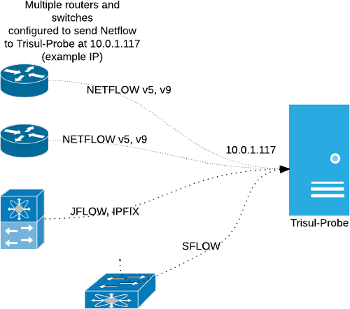
Figure: Configuration of routers/switches to send Netflow (JFLOW,IPFIX,SFlow,etc) to Trisul-Probe
Advantages of Netflow vs Packet Capture
Trisul’s default input mode is raw packet capture. Trisul also supports NetFlow v5/v9/JFlow/IPFIX/and SFlow metering.
| Advantages of netflow input | Disadvantages |
|---|---|
| Easier distributed deployment | No packet based traffic metering like DNS, HTTP, SSL analysis,etc |
| Less expensive hardware | Limited security visibility |
| Scales far better than packets | Cannot access packets for forensics or malware analysis |
Tip: You can use packet capture mode to do full NSM (Network Security Monitoring) at the perimeter, and NetFlow to gain visibility into lateral traffic inside your network.
Global vs Device View
This may be confusing for those coming to Trisul from traditional netflow solutions. Most of the Trisul dashboards are Global views that represent the sum total of all the interfaces in your network. If you see metrics for 8.8.8.8 it represents the TOTAL traffic to 8.8.8.8 from all the routers in your network.
Trisul also has a Device View. You access that through the Routers and Interfaces tool. The Device View allows you to select a router then an interface on that router and then see the breakup of traffic within that.
If you log on for the first time into a Netflow instance you may get a dashboard like below. The image below shows where to find the Router and Interfaces for getting to the Device Specific view.
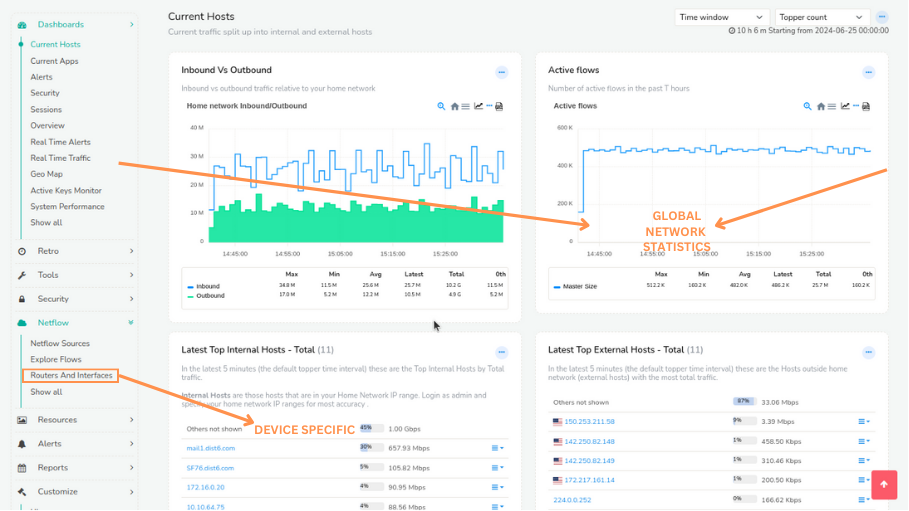
Figure: Global vs Device View
Links
The following docs contain further instructions to setup Netflow
- Setup Netflow— How to switch Trisul into a Netflow mode
- Netflow Configuration Wizard— Using the NetFlow Config Wizard to customize, use SNMP to resolve, set up Email alerts, etc.
- Routers and Interfaces— The Device Drilldown tool that allows you to select a router, view interfaces, drilldown into an interface
- Using Interface Tracking— Enabling Interface Tracking, a feature that allows long term accurate analysis of Hosts, Apps, Protocols into and out of an interface
- Interface Drilldown— Using the Interface Drilldown Screen
- Netflow Sources Dashboard— The netflow sources dashboard
- Using SNMP— Using SNMP to complement NetFlow device views