Query IPDR logs with AI
AI Query turns a plain-language request, or an attached request document, into IPDR queries. You review the queries, then submit them. Trisul runs them through the normal IPDR query workflow, the same one as Query Logs.
Applies to: Trisul IPDR DoT Compliance.
Who uses it: compliance users who answer agency requests (for example dotuser).
This page covers the AI in the IPDR product. It is a separate feature from Trisul AI, the general network analytics assistant.
| IPDR AI Query | Trisul AI | |
|---|---|---|
| Job | Fill in IPDR queries from a request | Answer questions about traffic, build reports and dashboards |
| Where | IPDR Logs → AI Query | Trisul AI page |
| LLM | The LLM set in API Keys: a cloud provider or a self-hosted OpenAI-compatible LLM | Gemini, OpenAI, Anthropic or a self-hosted OpenAI-compatible LLM, through the Trisul AI CLI |
| Setup | LLM Provider, LLM Model, API Key and Custom Endpoint in Settings → API Keys | AI endpoint in Settings → Trisul AI |
What the AI does and doesn't do
The AI only reads your request and fills in the query fields: IP, port, NAT IP, device IP, username, and the from and to times.
It doesn't:
- Search, read or see IPDR records.
- Run queries or build the report. The IPDR query engine does that, with the same validation and access control as a manual query.
- Make legal or compliance decisions, or skip any approval step.
The text you type, and the file you attach, are sent to the LLM set in API Keys to extract the query fields. If that LLM is a cloud service, check your organization's rules on sharing agency request contents with a third party before you use AI Query. To keep requests on your network, use a self-hosted LLM through Custom Endpoint.
Before you begin: set up the LLM (admin)
An admin does this once.
- Log in to WebTrisul as Admin.
- Click the ⋯ menu at the top left, then click Settings.
- On Web Trisul Settings, click API Keys.
- In LLM Provider, select the LLM provider.
- In LLM Model, enter the model or deployment name, for example
gemini-2.5-flashorgpt-4o-mini. - Connect to the LLM:
- For a cloud provider, paste the provider's key in API Key.
- For a self-hosted LLM, such as Ollama or LM Studio, enter its OpenAI-compatible base URL in Custom Endpoint. API Key is optional if the LLM doesn't need authentication.
- Click Save.
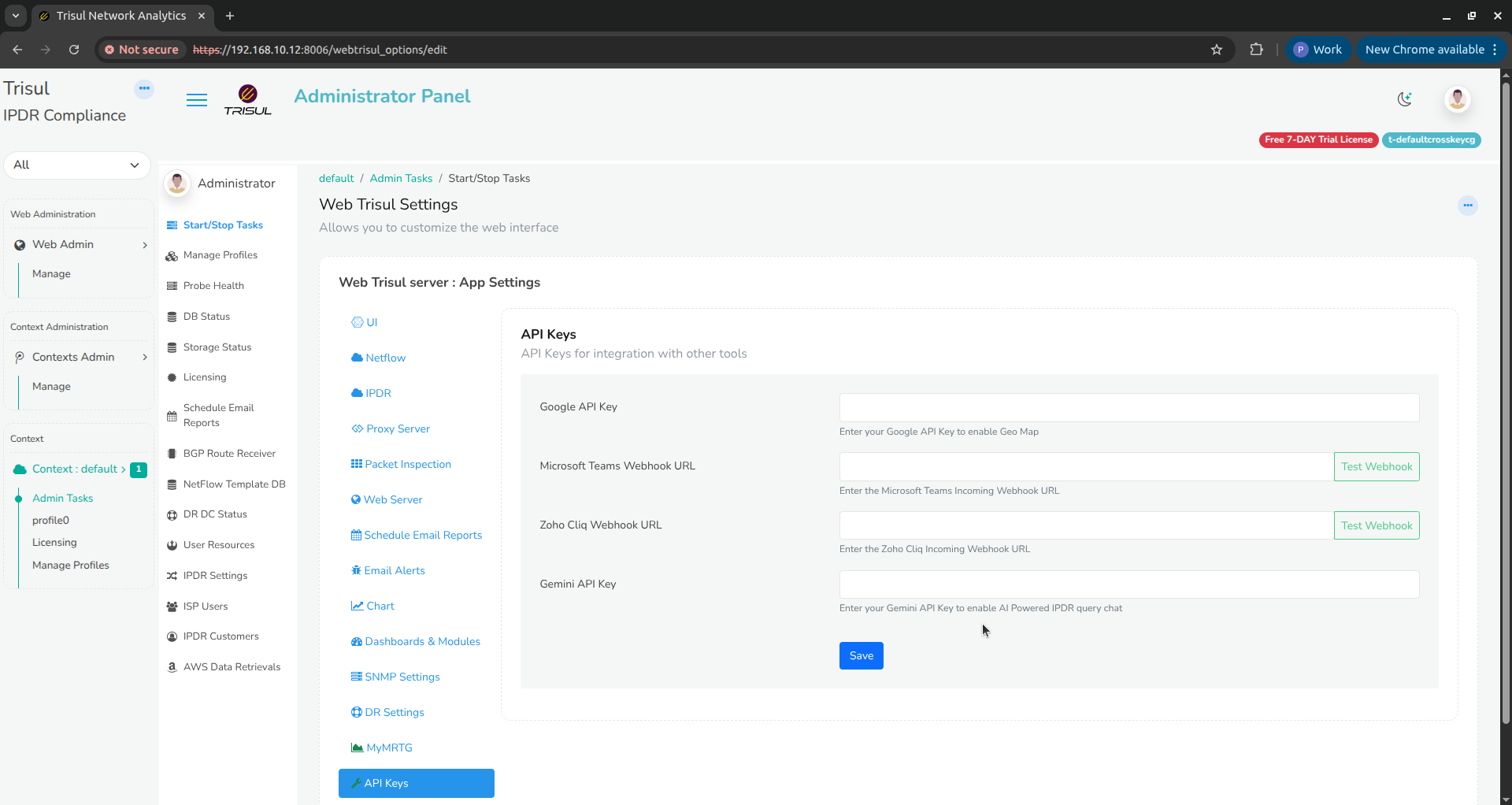
These settings apply to the whole server. Every user who runs AI Query uses the same LLM and key.
For the field reference, see App Settings → API Keys.
Create queries from a request
-
Log in as a compliance user and select the IPDR context.
-
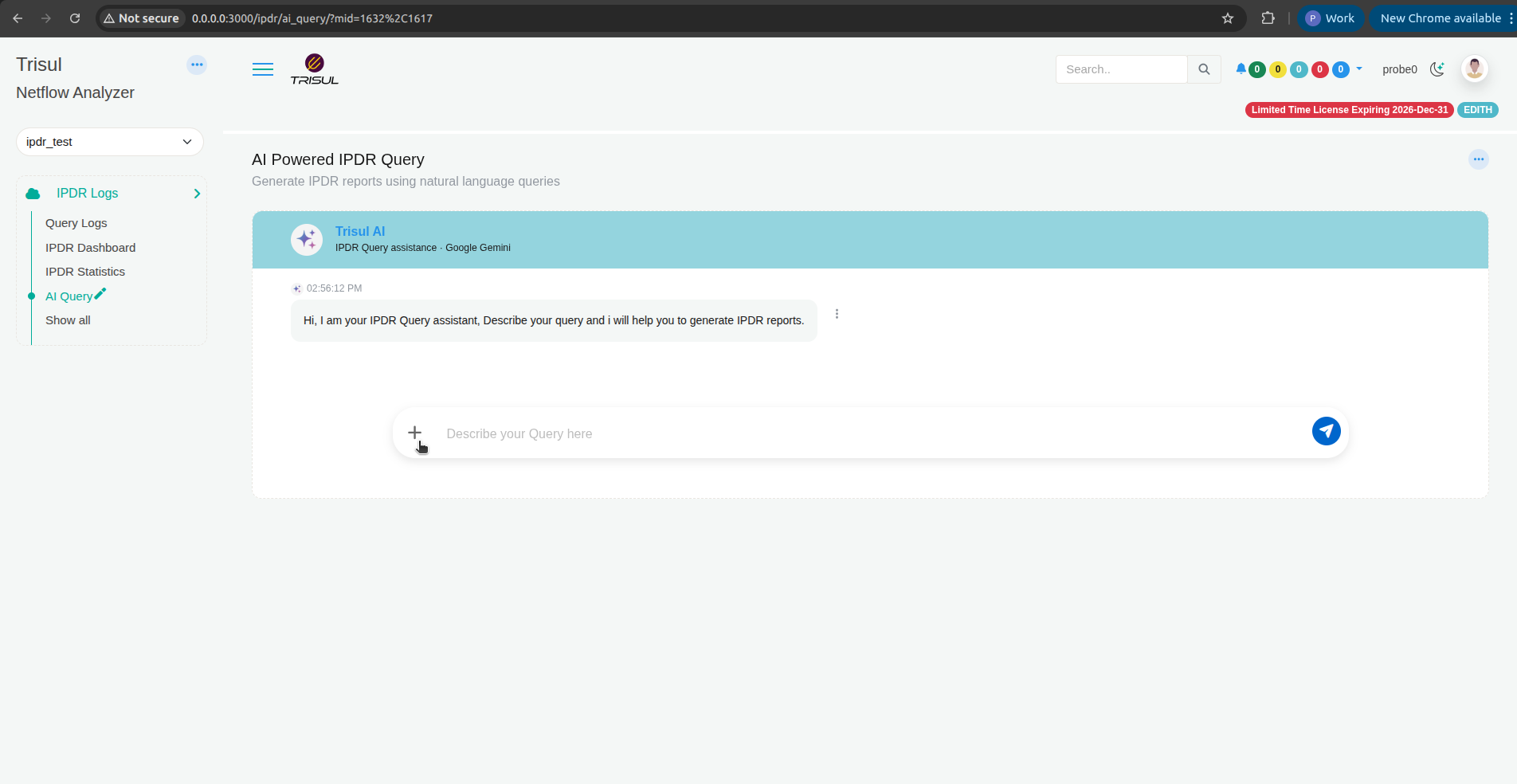
Click IPDR Logs → AI Query.
The AI Powered IPDR Query page opens, with Trisul AI in the header.
-
Give the AI the request, in one of two ways:
-
Type it in Describe your Query here. Include the identifier (IP, port, NAT IP or username), the exact time window with date and time, and the type of records you need. For example:
Get IPDR logs for IP 203.0.113.1 port 443 from 2025-09-15 11:55 to 12:10. -
Attach the request document. Click +, then choose the file. The file appears above the input box. Click the x on it to remove it.
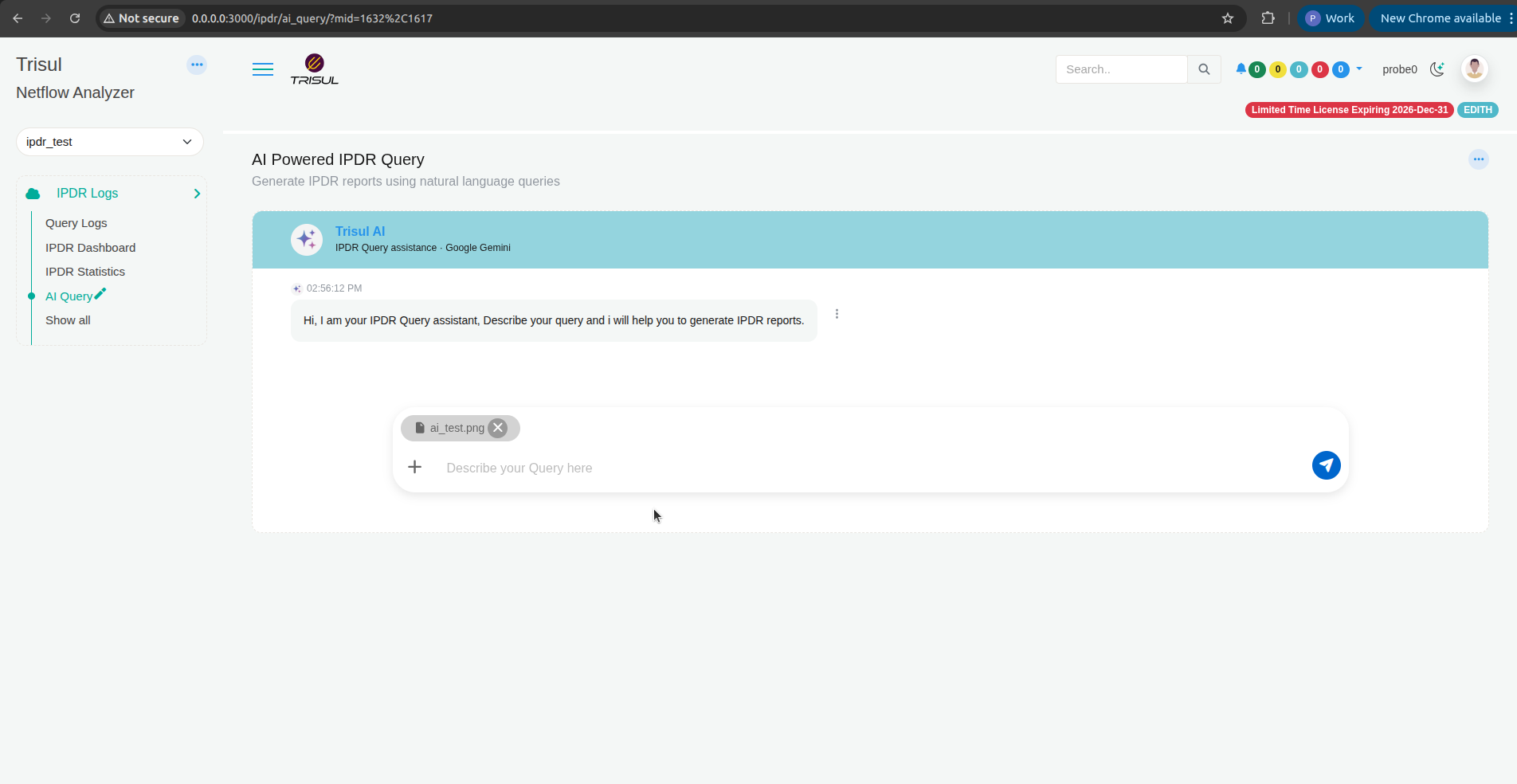
The file can be up to 10 MB. Supported types are
.txt,.csv,.xlsx,.xls,.ods,.docx,.odt,.pdf,.png,.jpgand.jpeg.- For
.docx,.odt,.pdf,.png,.jpgand.jpeg, the browser needs internet access. The page loads the libraries that read Word and PDF files and run OCR on images. - Legacy
.docfiles are not read. Save the file as.docx, then attach it.
- For
-
-
Click the send button.
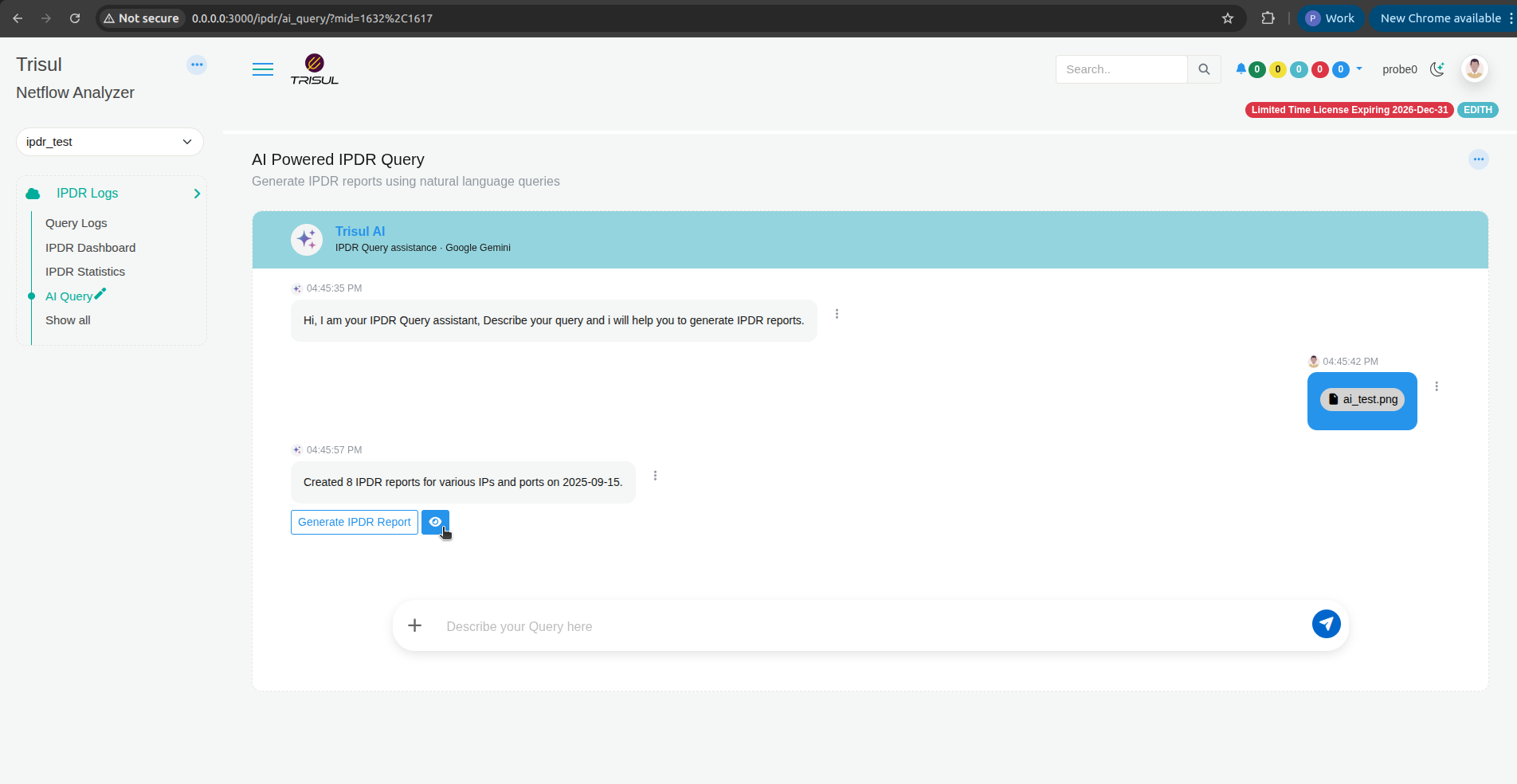
The AI replies with a summary, for example Created 8 IPDR reports for various IPs and ports on 2025-09-15., and two buttons: Generate IPDR Report and a view (eye) button.
Check the queries before you submit
Always review what the AI extracted. A wrong digit in an IP, port or time produces a wrong report.
-
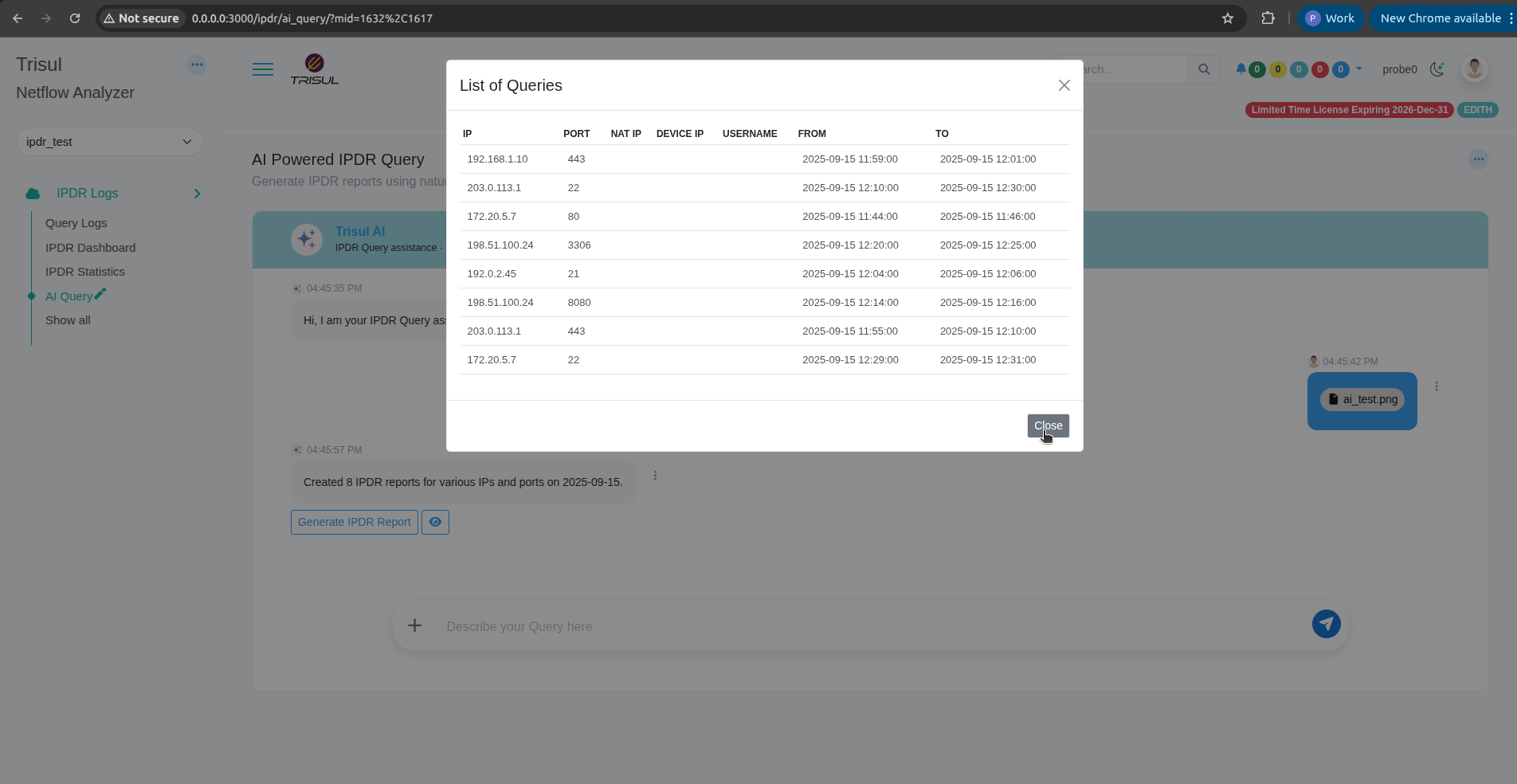
Click the view (eye) button.
List of Queries shows one row per query, with IP, PORT, NAT IP, DEVICE IP, USERNAME, FROM and TO.
-
Compare every row with the original request: the identifiers, the date, and the start and end times.
-
Check the time zone. FROM and TO use the system time zone. If the request gives times in another time zone, convert them to the system time zone before you send the request.
-
Click Close.
If anything is wrong, tell the AI what to fix in a new message. The AI updates the same query list. Click the view (eye) button and check the list again. To enter a query by hand instead, use Query Logs. See Submit queries.
Submit the queries
-
Click Generate IPDR Report.
-
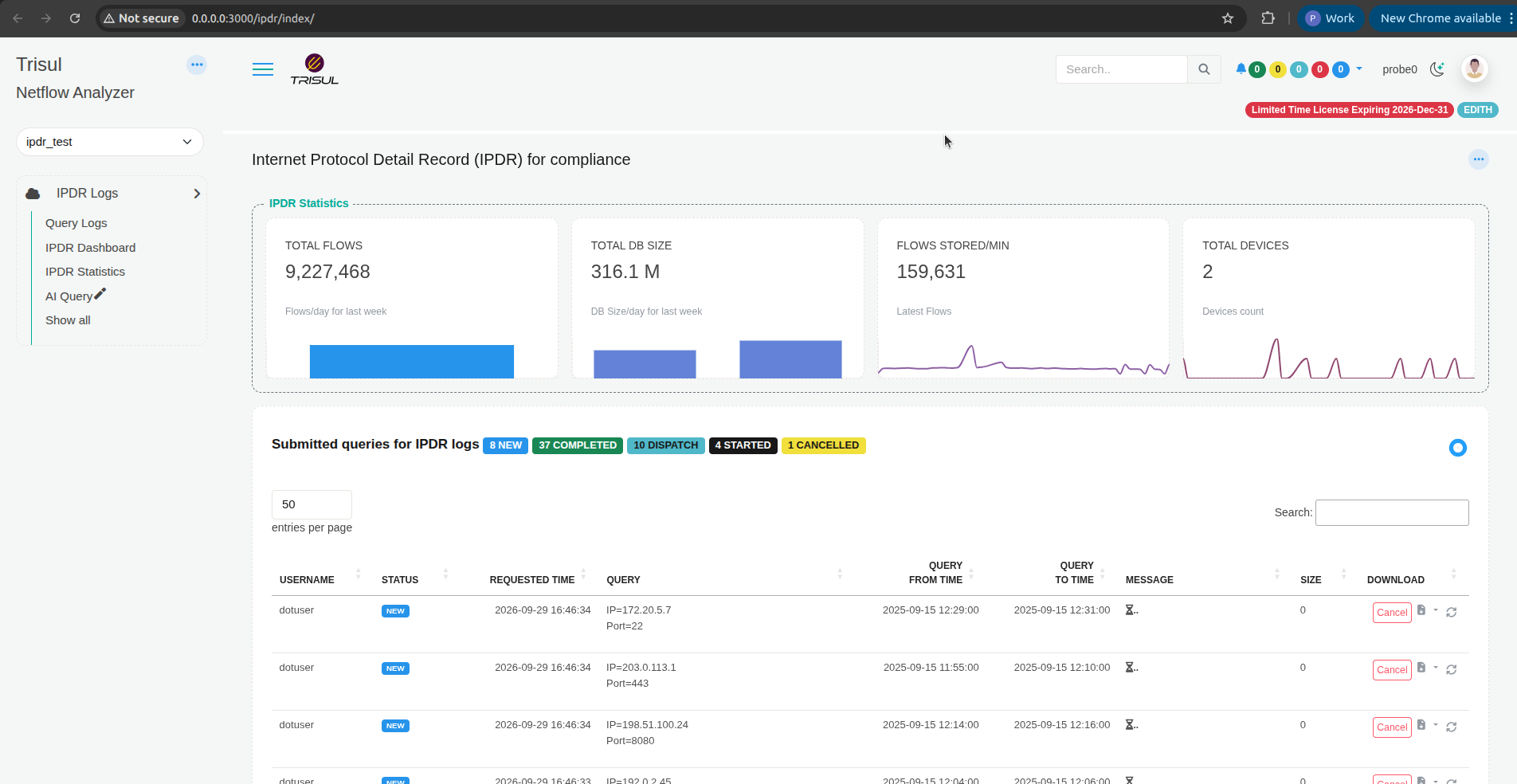
Trisul submits one query per row. They appear under Submitted queries for IPDR logs on the IPDR page, with status NEW.
-
Track each query as its status moves through NEW, STARTED, DISPATCH and COMPLETED. When a query is COMPLETED, download its report from the DOWNLOAD column. For what each status means, see Submit queries.
To stop a query before it runs, click Cancel in its row.
Related
- Submit queries: the manual query form.
- Format of the output report.
- The dotuser ID.