Installation
Getting started with Trisul IPDR
The steps for getting from zero to a working install of Trisul IPDR are
- Get a VM or a physical server ready for IPDR. See System Requirements
- Sign up and Download the Trisul Network Analytics packages for your platform. 📥 Get Started Page
- You need to install the three core packages only for IPDR.
- trisul-hub
- trisul-probe
- webtrisul
- On first Admin login select the Trisul Network Analytics product mode as IPDR
Follow the rest of this page to finish the setup.
Package Install
For IPDR mode, you only require trisul-hub trisul-probe webtrisul
You do not require the trisul-geo and trisul-badfellas
📝 Follow the steps in Installation section in the Trisul User Guide
For example :
# RHEL
yum install trisul-hub trisul-probe webtrisul

# Ubuntu
apt install trisul-hub trisul-probe webtrisul
Mode Wizard at First Login
After install go to Trisul IPDR webpage at http://x.y.z.z:3000 and enter admin/admin - On first login you will be asked to switch to IPDR mode.
1. Select the IPDR mode
On the very first admin login you will be prompted to switch into the desired mode of Trisul Network Analytics. The selection box will look like this. Select the IPDR Compliance option and press Next.
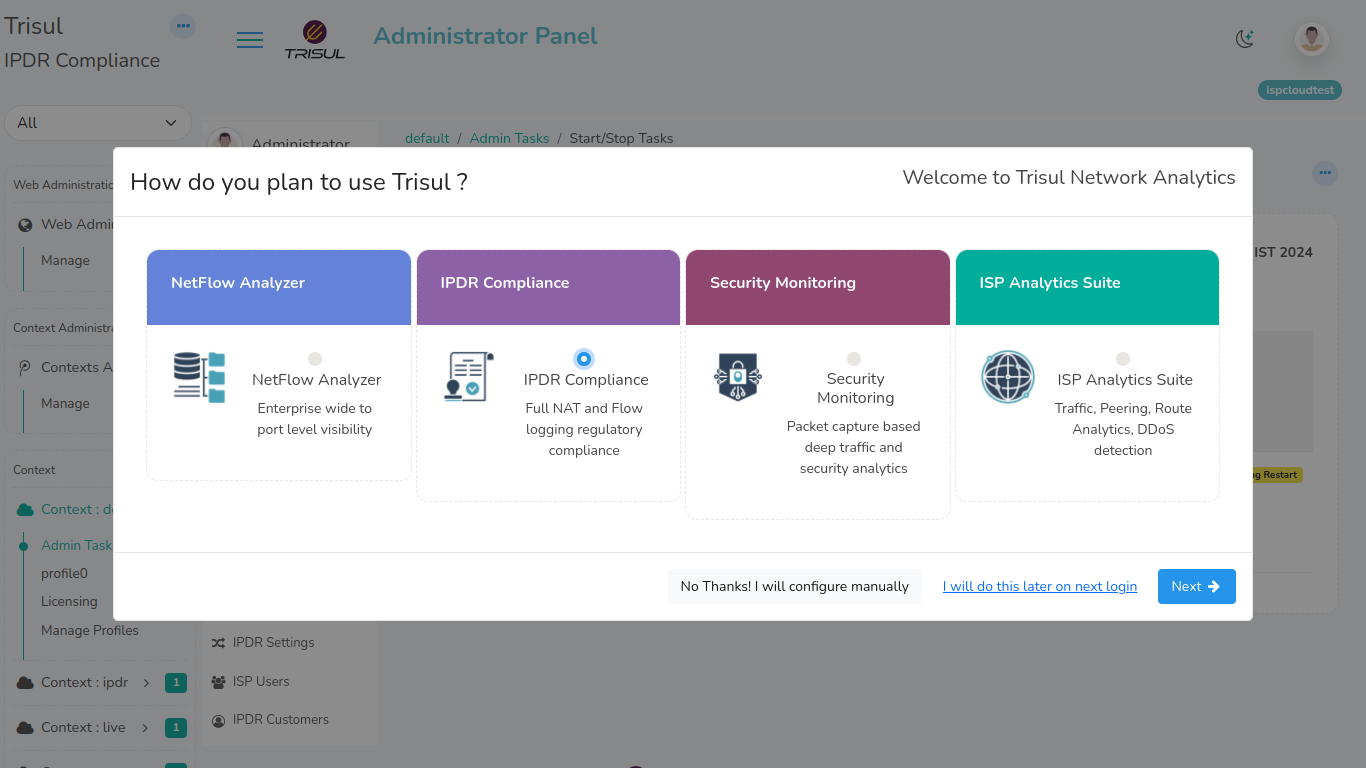 Figure: Select IPDR Compliance Mode
2. Select the Interface
Next you need to select the network interface on which you will be receiving the NetFlow and/or SYSLOG traffic.
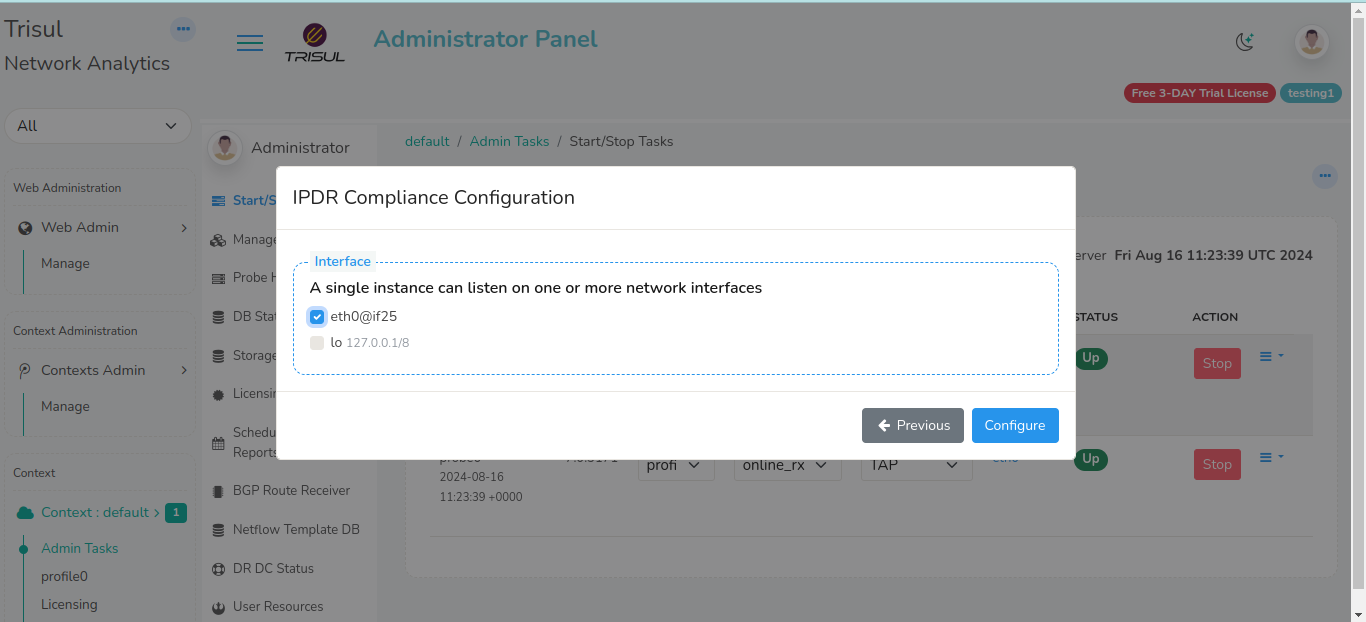 Figure: Select interface on which data will arrive
3. Request a Trial License
The built-in license works for 7 days. When it ends, you can extend the trial for another 15 days. Request the extension at https://www.trisul.org/support/get-extended-license/
Configure Network for IPDR
Now the IPDR server is ready. Next, configure your network to send data to it:
- Export NetFlow or IPFIX from your gateway routers. See NetFlow.
- If you use NAT or CGNAT, send NAT logs. See NAT Syslog.
- If IP addresses are assigned dynamically, integrate your AAA/RADIUS logs. See AAA and RADIUS.
Verify that IPDR logging works
- Log in as
dotuserand open IPDR Statistics. Check that NetFlow Records shows a rate above zero, and that NetFlow Not Received shows no alert for your routers. If you integrated AAA, check AAA Files Processing. - Submit a query for an IP address you know was active in the last hour.
- On the IPDR Dashboard, download the result. Check that the NAT IP, NAT Port and UserID columns are filled where you expect them.