Resource Groups for Subscribers
Resource groups assign devices, interfaces and other objects to users. A subscriber user sees only the resources in the groups assigned to them, in the Traffic Grapher.
Create a resource group
Log in as admin and go to Context:MRTG → Admin Tasks → User resources.
MRTG is an example context name. One Trisul install can run several contexts, for example default for ISP analytics, an IPDR context for compliance, and an MRTG context for subscriber traffic charts. Use the context that holds your subscribers' data.
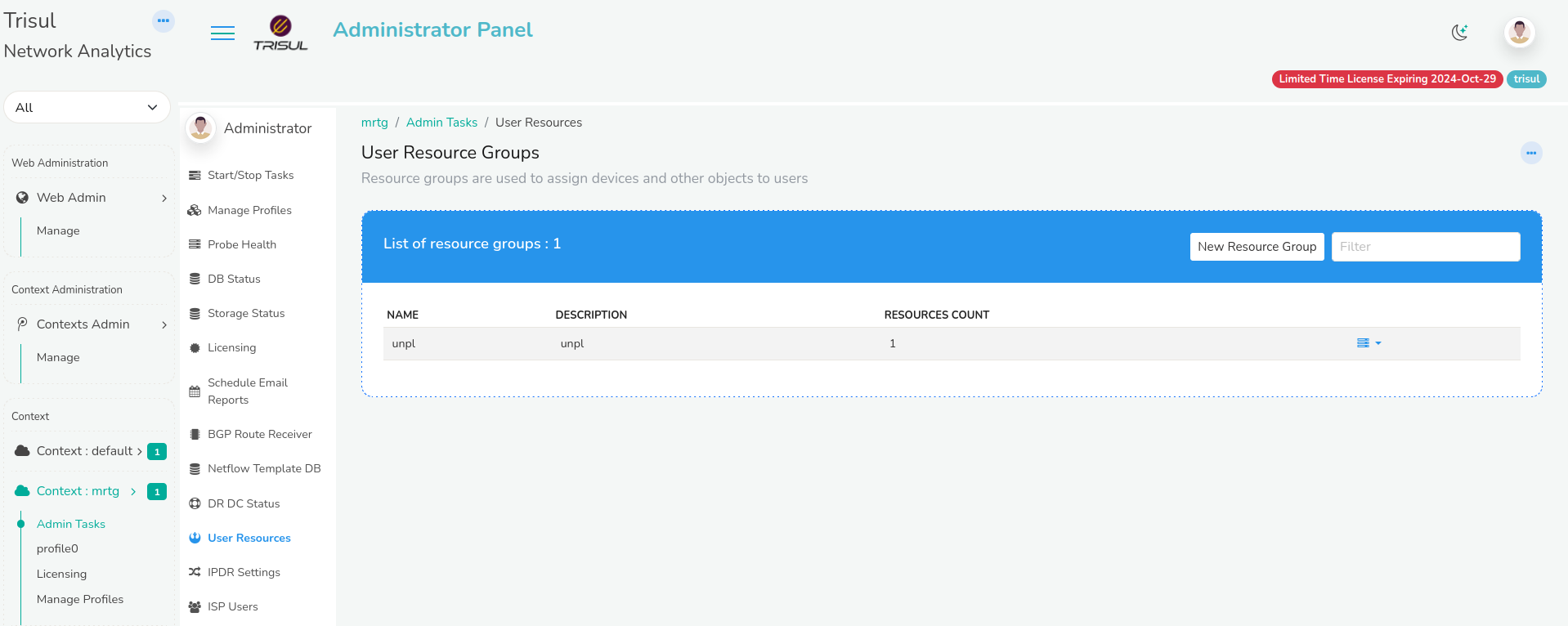
On the User Resource Group module, click New Resource Group.
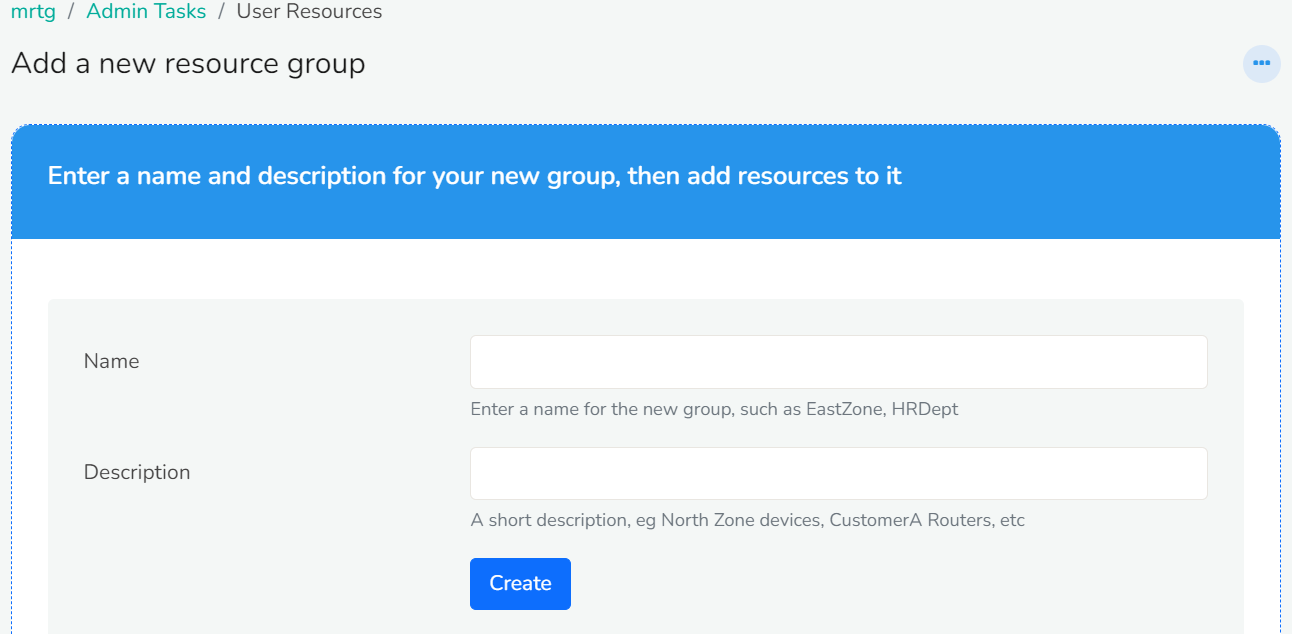
In Add a new resource group, enter a name for the group and a short description. Then click Create. The new group appears in the list of resource groups.
Create a subscriber user
To create a subscriber user,
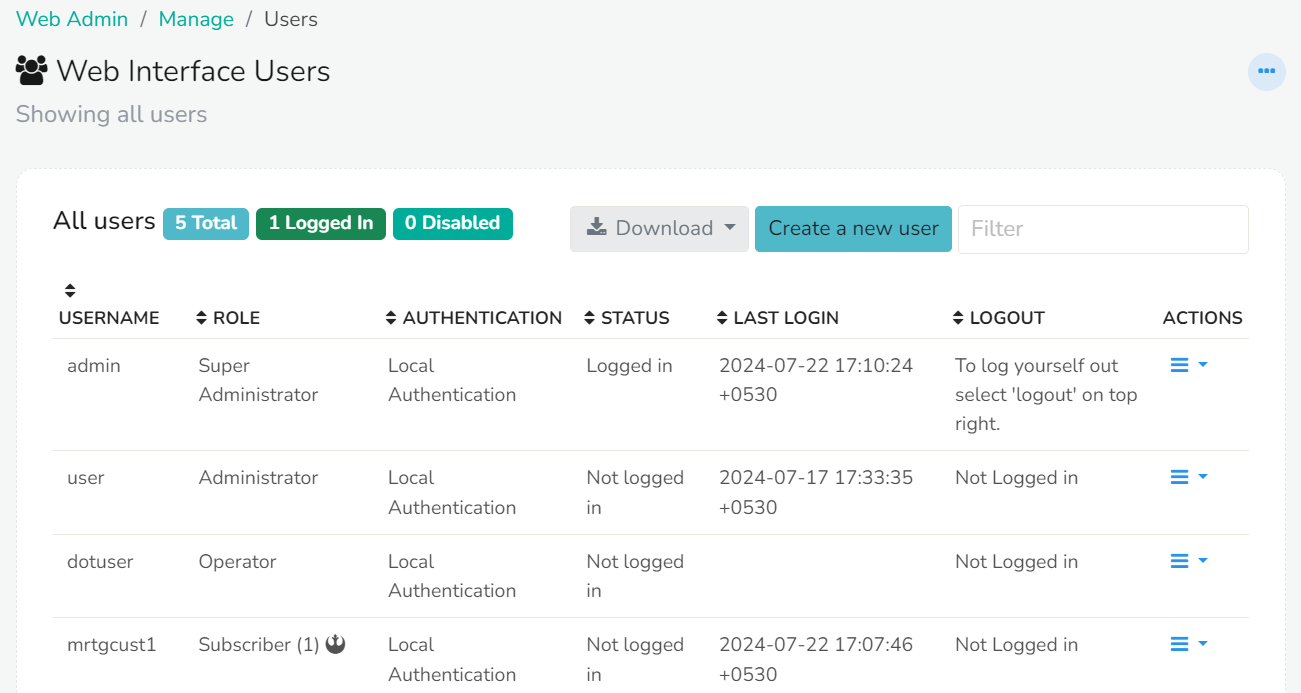
Log in as admin and go to Web Admin → Manage → Users.
Click Create a new user on the Web interface users module
You will see the New User window with the following fields.
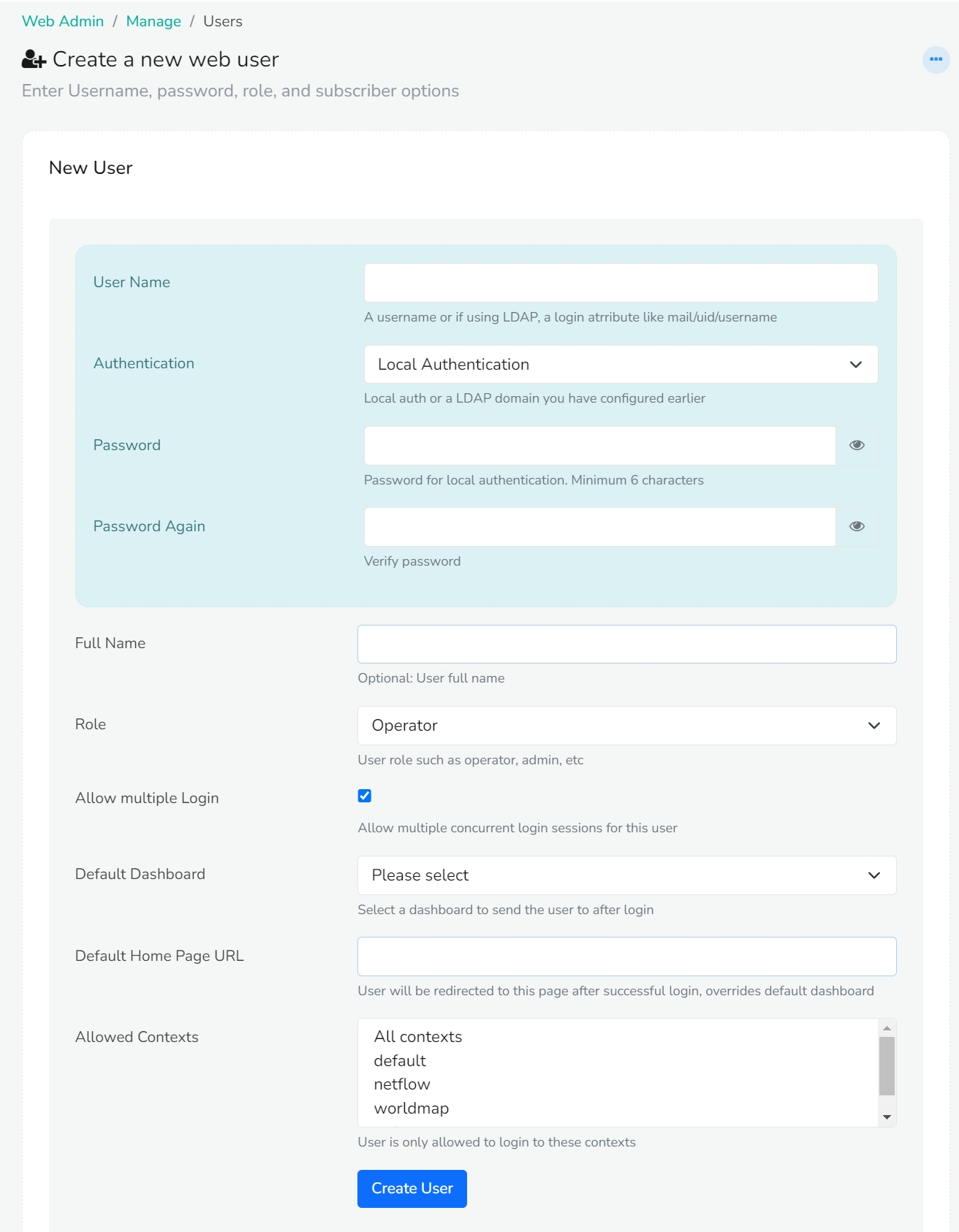
| Fields | Description |
|---|---|
| User Name | Enter the username for the subscriber |
| Authentication | Select Local authentication |
| Password | Enter the password for the subscriber |
| Full Name | Enter the full name of the subscriber |
| Role | Select user role as Subscriber |
| Allow Multiple Login | Check this if you want to allow multiple concurrent login sessions for this user |
| Default Dashboard | |
| Default Home Page URL | Enter the URL: /mrtg/index |
| Allowed Contexts | Select the contexts from the list of contexts for the subscriber |
Click Create User. The new user appears in the list of users. For every field on this form, see Users.
Add resources to the group
To add resources (keys) to a resource group:
Log in as admin and go to Context:MRTG → Admin Tasks → User resources.
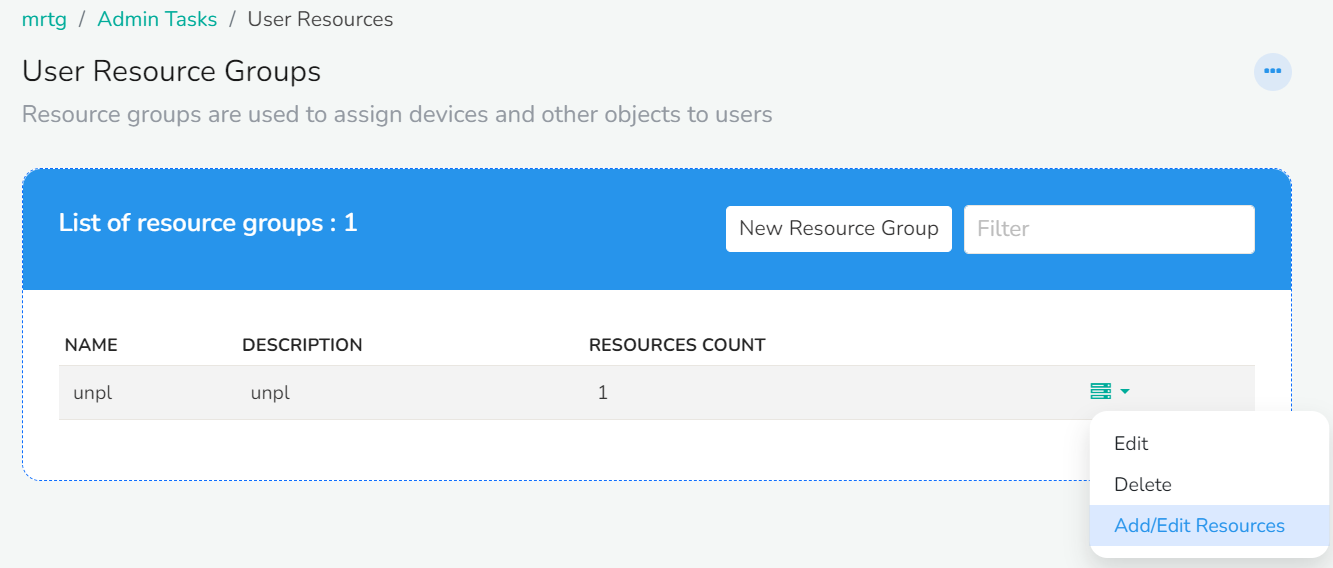
You can see the newly added resource groups under the list of resource groups window. Click on the dropdown option button on the right against the resource group you would like to assign to. Click Add/Edit Resources. The Resource group keys window appears with the following fields.
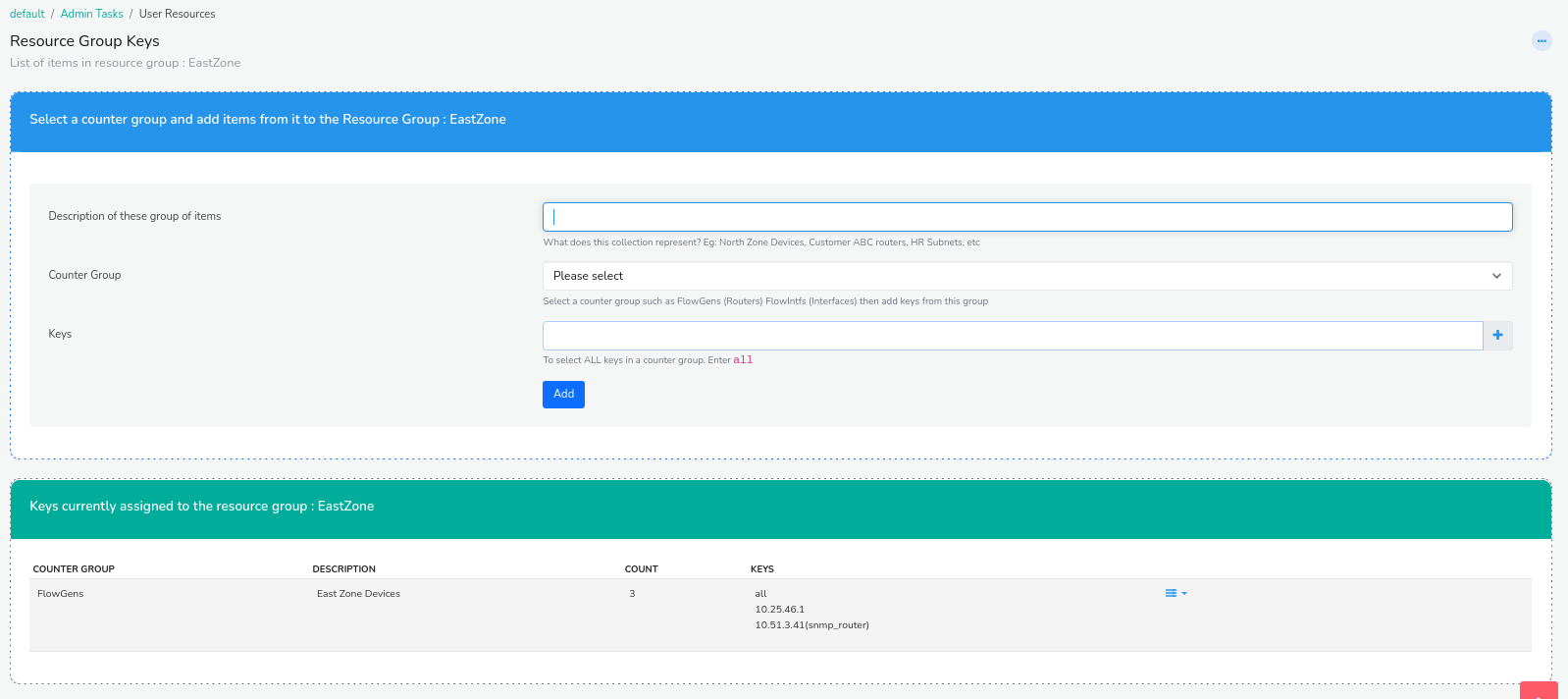
| Fields | Description |
|---|---|
| Description of these group of items | Enter a short description on what this collection represents |
| Counter Group | Select SNMP-Interface from the list of counter groups. Use SNMP-Interface for subscriber graphs, not the NetFlow FlowIntfs group. |
| Keys | Click on the Plus icon to add the keys and click Select after adding the desirable keys to that particular resource group |
If you cannot find SNMP-Interface from the list of counter groups. Install SNMP-Poller from Trisul Apps before this step and try again.
Fill in the fields and click Add. The keys assigned to the group appear at the bottom of the same window.
Assign the group to the user
Assign the resource group to the subscriber user, as described in Assigning Resource Groups to Users in the Admin Guide.
Next steps
Log in as the subscriber user to check what they see in the Traffic Grapher.