Build a dashboard with Trisul AI
Describe the dashboard you want. Trisul AI proposes a layout, waits for your approval, then builds the dashboard and installs it in WebTrisul. You don't need to know counter group names or module settings.
Before you begin: Trisul AI is set up, and you've selected the context the dashboard is for.
Steps
-
Open the Trisul AI page and describe the dashboard:
create a network overview dashboard -
Read the plan. Trisul AI lists each module, its width on the 12-column grid and the data behind it.
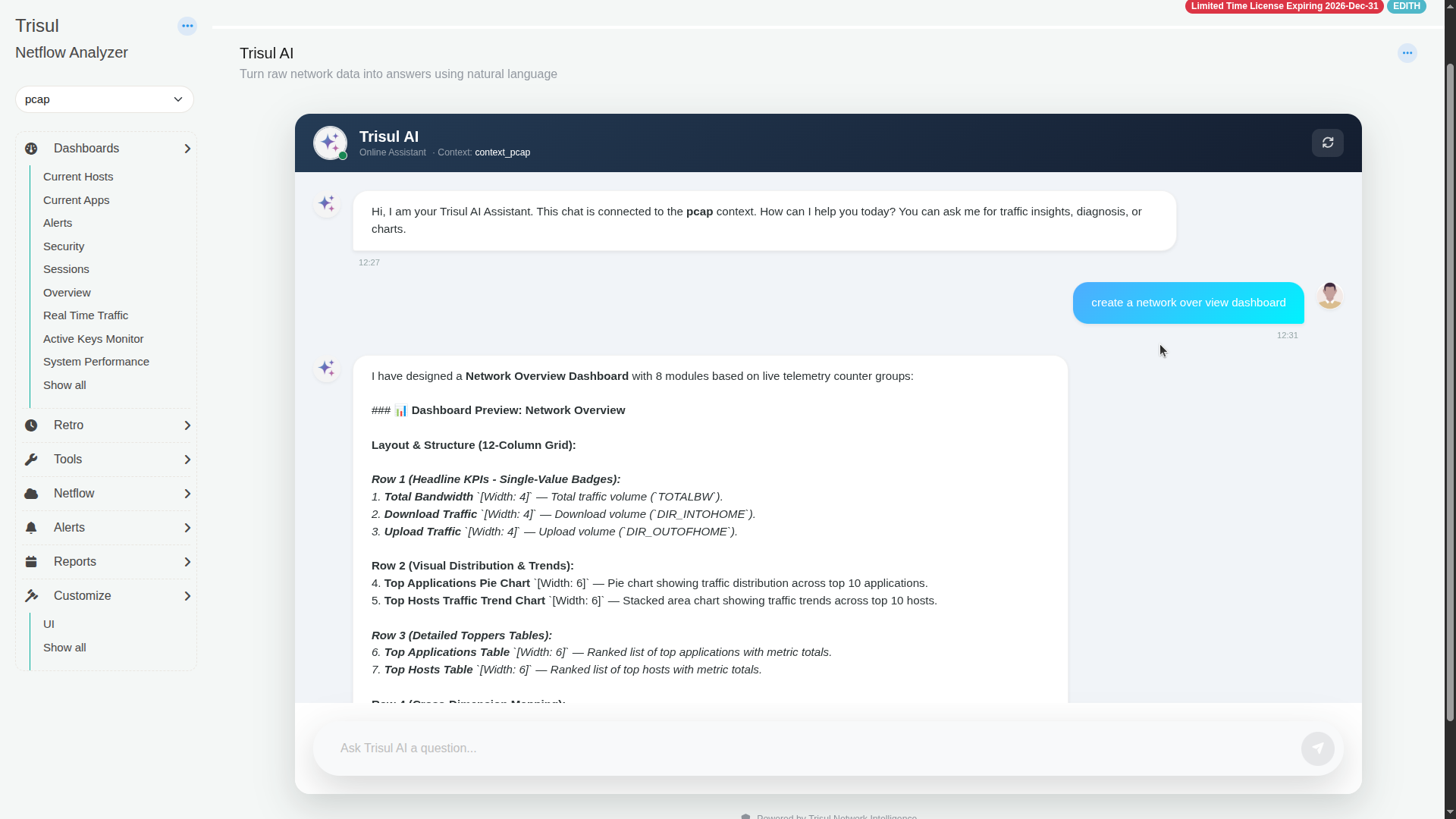
For a network overview it proposed eight modules in four rows:
Row Modules 1 Total Bandwidth, Download Traffic, Upload Traffic badges (width 4 each) 2 Top Applications Pie Chart, Top Hosts Traffic Trend Chart (width 6 each) 3 Top Applications Table, Top Hosts Table (width 6 each) 4 Hosts to Apps Sankey (width 12) -
To change the plan, say what to change, for example "replace the pie chart with a bar chart". Trisul AI sends a revised plan.
-
When the plan is right, reply
ok. -
Trisul AI generates the dashboard package. Use the buttons under its reply:
Button What it does Preview dashboard Opens a preview without installing the dashboard. Download dashboard JSON Saves the dashboard package file, so you can keep it or import it on another Trisul. Install dashboard Installs the dashboard in WebTrisul. View dashboard Opens the installed dashboard. 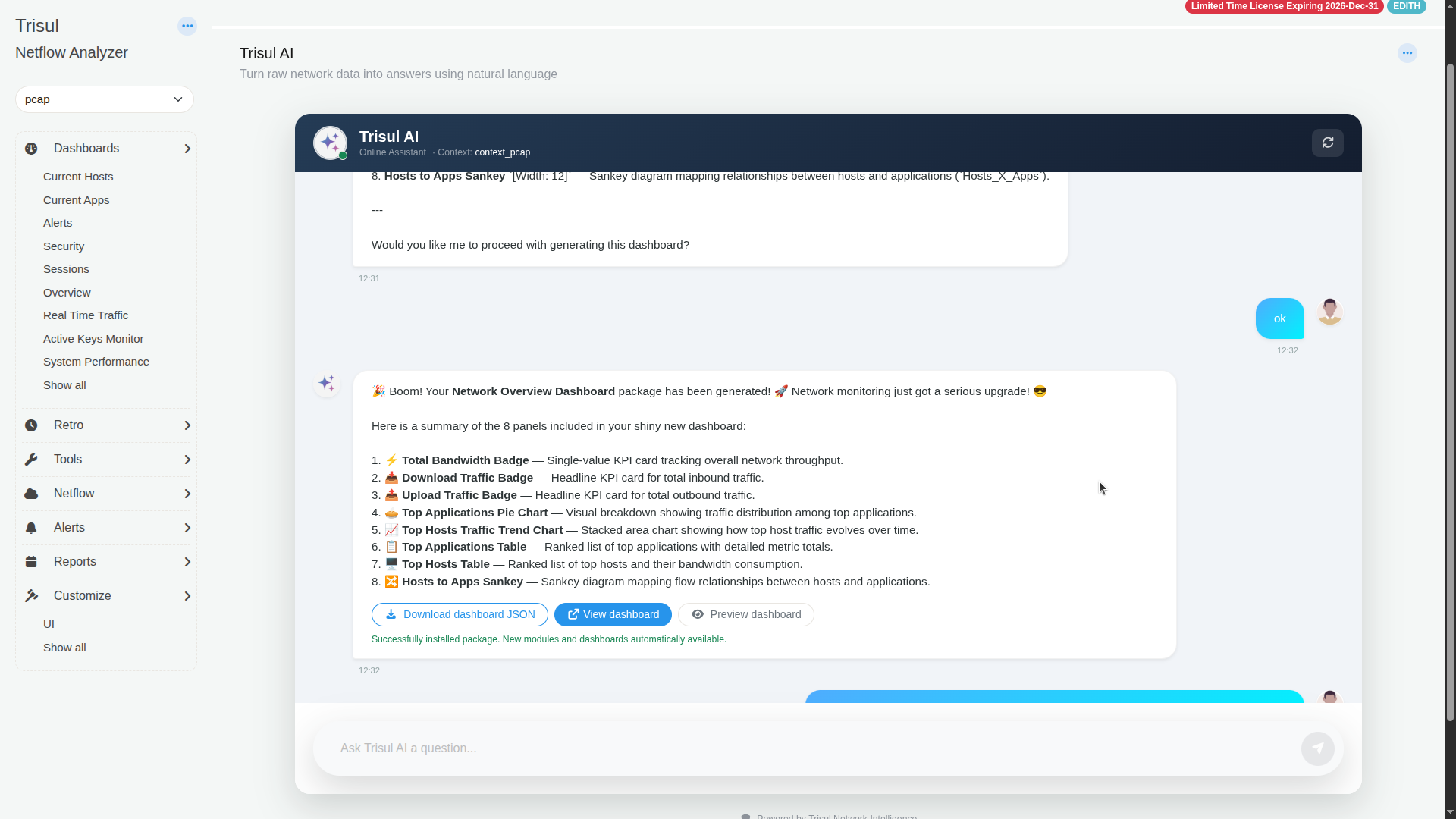
-
Click Install dashboard, then View dashboard.
The dashboard belongs to the context you opened the chat from.
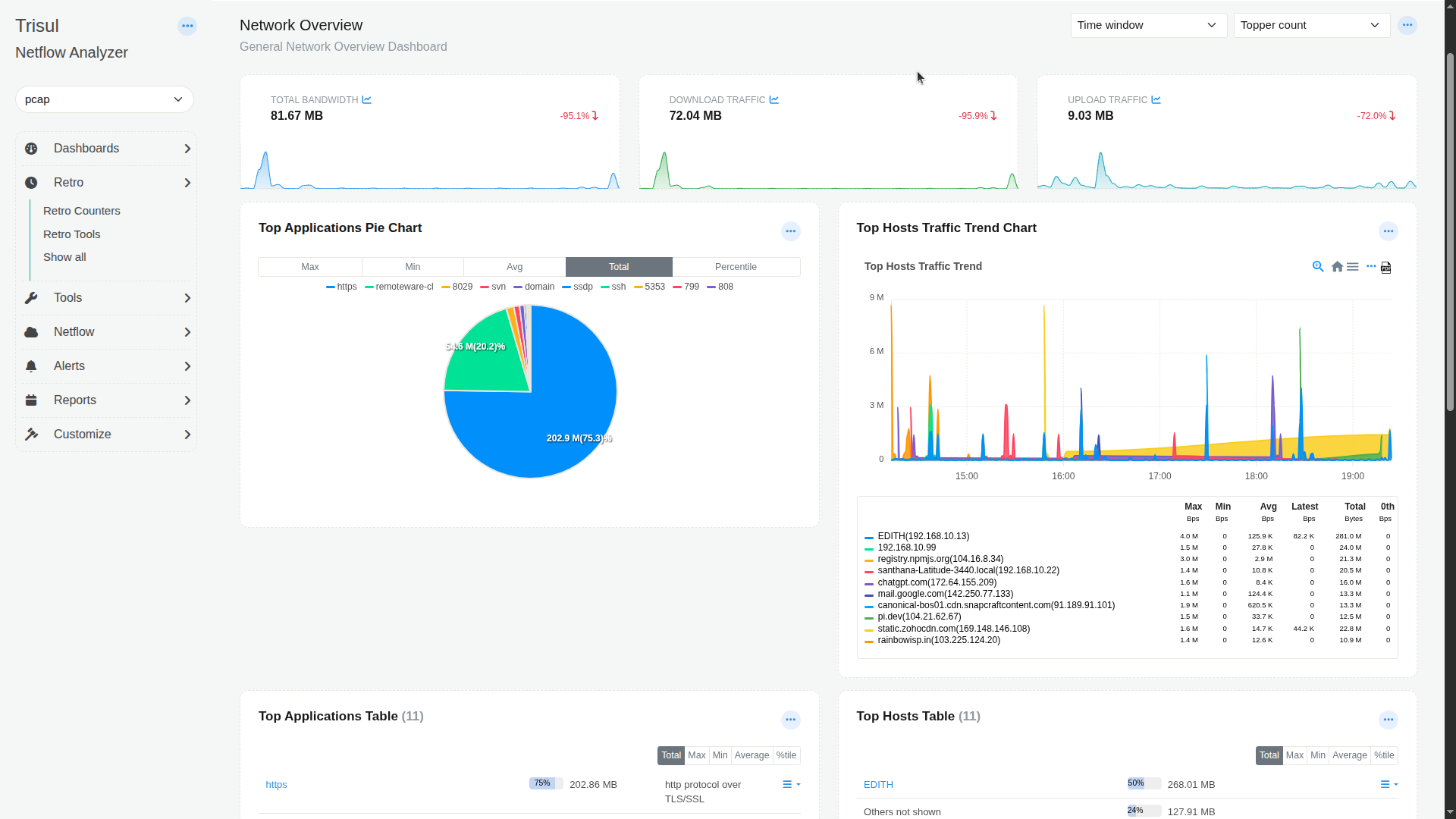
Use Time window and Topper count at the top right of the dashboard to change the period and the number of items shown.
Add a module that needs new data
If a module needs data that no counter group collects yet, Trisul AI says so and proposes a new counter group.
For example, "add a module to show data in three dimension with apps, hosts and protocol in tree format" needs a three-way crosskey. Trisul AI found only two-way crosskeys such as Hosts_X_Apps, so it proposed a new crosskey counter group, Apps_X_Hosts_X_Protocol, with its settings. After you reply ok, it creates the counter group and adds the module.
After Trisul AI creates the counter group, restart the context manually (Admin Tasks → Start/Stop Tasks). The new counter group collects data only after the restart, so the module stays empty until then.
Related
- Create a counter group with Trisul AI
- Build a dashboard by hand: Create dashboards