Set up Trisul AI
Setup has three stages:
After stage 2 you can already chat with Trisul AI in a terminal. Stage 3 adds the Trisul AI chat page in WebTrisul.
Who does this: a Trisul administrator.
Before you begin
You need:
- Trisul 8.0 or later (Hub and WebTrisul), installed and running.
- Python 3.10 or later on the machine that will run the Trisul AI CLI. This is usually the Trisul Hub.
- An LLM. Use one of these:
- an API key for Google Gemini, OpenAI or Anthropic, or
- a self-hosted, OpenAI-compatible endpoint, such as Ollama, LM Studio, vLLM or LocalAI.
- An API key for an embedding provider (Google Gemini, OpenAI or VoyageAI). Trisul AI uses embeddings to search the Trisul documentation when you ask product questions.
Stage 1: Install the Trisul AI CLI
The Trisul AI CLI is a Python package. Install it in a virtual environment.
-
Install Python, pip and the Python virtual environment package.
On Ubuntu:
sudo apt update && sudo apt install python3-pip python3.12-venv -yOn RHEL:
sudo dnf update -y
sudo dnf install python3 python3-pip python3-devel -y -
Create a virtual environment and activate it:
python3 -m venv .venv
source .venv/bin/activate -
Install the Trisul AI CLI:
pip install trisul_ai_cli
Stage 2: Choose the LLM and the data source
-
Start the CLI from the virtual environment:
trisul_ai_cli -
The first time you start it, the CLI asks you to choose an LLM:
- Pick a Gemini, OpenAI or Anthropic model, then enter the API key for that provider.
- Or pick custom:local for a self-hosted endpoint, then enter its API base URL (for example
http://localhost:11434) and the model name. You can skip the API key for Ollama and similar servers.
-
Choose an embedding model (Gemini, OpenAI or VoyageAI) and enter its API key, if the CLI asks for one.
The CLI saves these settings in a
.envfile. To change them later, see CLI reference: commands. -
Check that it works. At the prompt, type:
Show top 10 hosts by traffic in the last hourYou should get a table of hosts. To leave the CLI, type
exit.
Where Trisul AI gets its data
-
If you don't name a context in your question, Trisul AI fetches data from the default context,
context0, on this machine. You don't need any extra setup for this. -
To get data from another context on this machine, name that context in your question, in plain English.
-
To get data from a Trisul on another server, first change that server's TRP endpoint from IPC to TCP. See Switching to a distributed domain. Then ask Trisul AI to connect to it, with the server's IP address and TRP port. For example:
Connect to the remote server with IP address 10.16.8.44 and port 5008.
The TRP port of a remote Trisul server is not the port WebTrisul uses to reach Trisul AI (8200, in stage 3).
To use Trisul AI only in a terminal, you can stop here. For terminal commands and examples, see the CLI reference.
Stage 3: Connect the CLI to WebTrisul
The WebTrisul Trisul AI chat page doesn't start the AI engine itself. It talks to the CLI running in API mode, a REST server. Your users' browsers call this server directly.
Start the API server
-
On the machine where you installed the CLI, activate the same virtual environment:
source .venv/bin/activate -
Start the API server:
trisul_ai_cli api --host 0.0.0.0 --port 8200You should see:
Trisul AI REST API starting in HTTP mode on http://0.0.0.0:8200
   Interactive docs: http://0.0.0.0:8200/docs
   Health check:     http://0.0.0.0:8200/api/health
--host 0.0.0.0lets browsers on other machines reach the server.--port 8200is the default port for the WebTrisul connection.- The API server uses the same LLM settings (
.env) as the CLI. If you skipped stage 2 on this machine, it asks for them the first time it starts. - The process must keep running.
-
To use HTTPS, add your certificate and key:
trisul_ai_cli api --host 0.0.0.0 --port 8200 \
  --ssl-certfile /path/to/cert.pem \
--ssl-keyfile /path/to/key.pem -
Check that the server is up:
curl http://127.0.0.1:8200/api/healthA healthy server returns
{"status":"ok","mcp_connected":true,...}.
Your users' browsers must be able to reach this machine on port 8200. Open the port in the firewall if needed.
Point WebTrisul at the API server
-
Log in to WebTrisul as Admin.
-
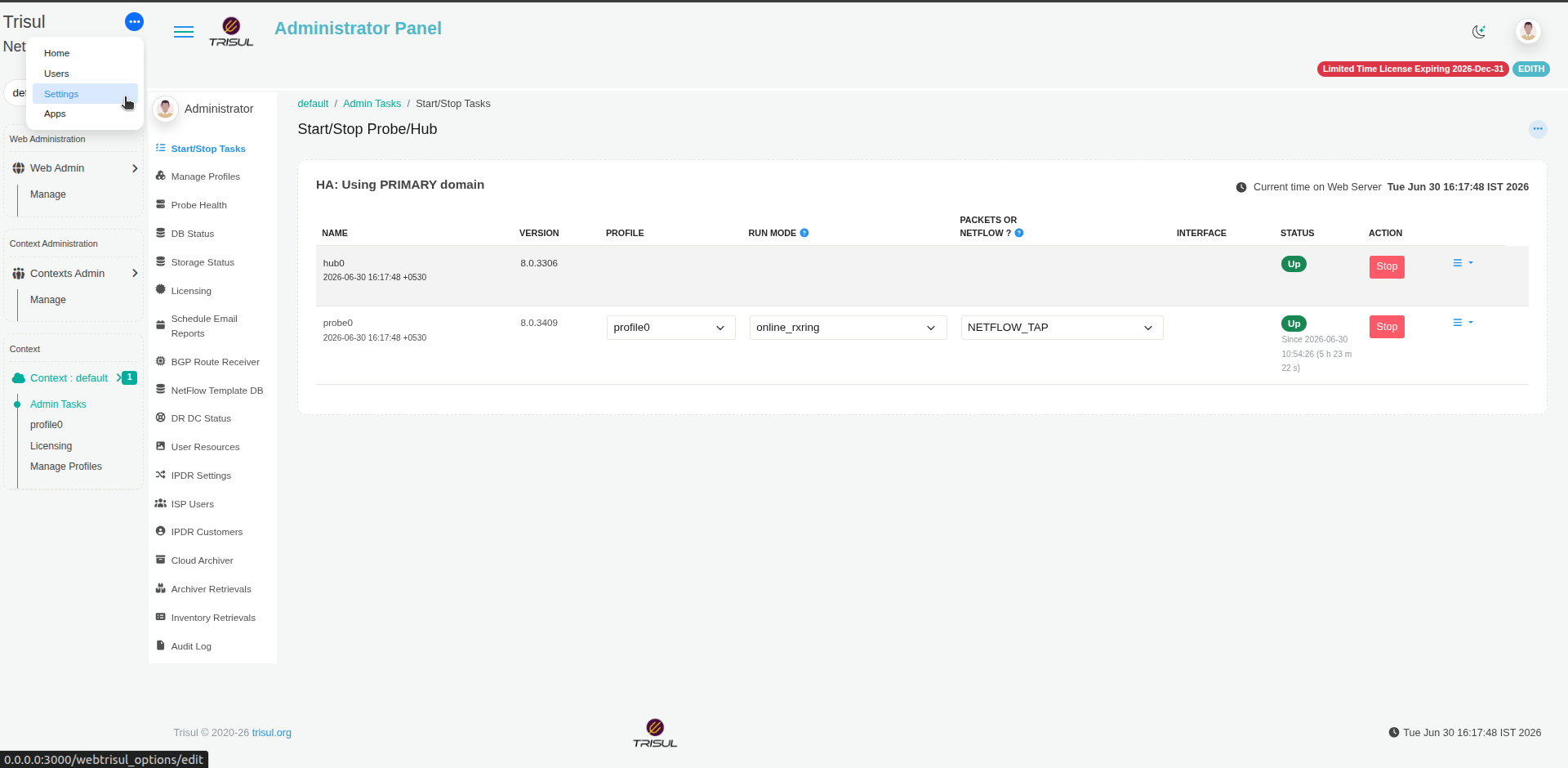
Click the ⋯ menu at the top left, then click Settings.
-
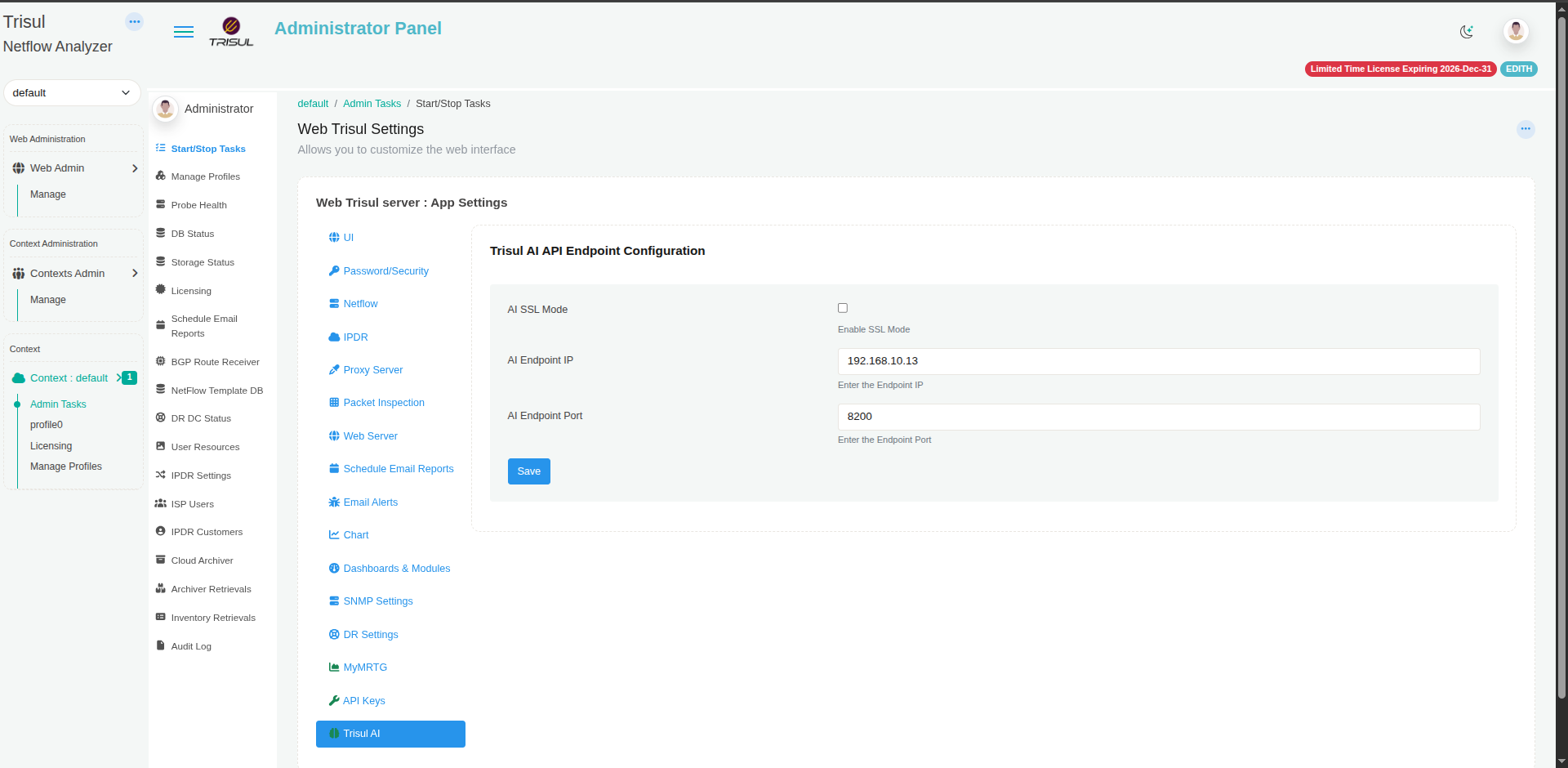
On Web Trisul Settings, click Trisul AI at the bottom of the left list.
-
Under Trisul AI API Endpoint Configuration, fill in:
Field What to enter AI SSL Mode Leave it cleared for HTTP. Select Enable SSL Mode only if you started the API server with --ssl-certfileand--ssl-keyfile.AI Endpoint IP An address of the API server that users' browsers can reach, usually the Hub IP. Use 127.0.0.1only if you browse from the same machine that runs the API server.AI Endpoint Port The --portvalue, for example8200. -
Click Save.
Check the chat
- Select a context in WebTrisul.
- Open the Trisul AI from sidebar menu.
- Check the header: it shows Trisul AI, Online Assistant, and the context.
- Type
show top 5 hostsand press Enter.
If you get a table of hosts, setup is done.
If it doesn't work
| Symptom | What to check |
|---|---|
| The chat shows Connection Failed | 1. trisul_ai_cli api is still running.2. /api/health answers on the IP and port you entered.3. AI SSL Mode matches how you started the server (HTTP or HTTPS). 4. If you browse from another machine, AI Endpoint IP isn't 127.0.0.1. To reopen the settings, click Configure Server Settings in the failed chat. |
Error: ZMQ timeout - no response from ipc://... | Trisul isn't running, or the context you chose doesn't exist. |
Error: Invalid API key | In the CLI, run change_llm_api_key. If product questions fail, run change_embedding_api_key. |
| Empty answers | Name the time window and the item in your question. Then check trisul_ai_cli.log. |
The CLI writes a log, trisul_ai_cli.log, in the directory where you started it.