Create a counter group with Trisul AI
A counter group is a set of meters that Trisul updates for each key, such as each host or each application. Trisul AI can create three kinds of counter group for you:
| Type | What it does | Example |
|---|---|---|
| Crosskey | Combines two or three counter groups into one, so you can see their combinations | Hosts × Apps, or Apps × Hosts × Protocol |
| Filter | Counts only the keys you choose from a parent counter group | Only DNS (port 53) traffic, per interface |
| Keyset | Groups keys from a parent counter group into named buckets | IP ranges named by city |
For each one, Trisul AI first checks the existing counter groups. If none fits, it shows a proposal and creates the group only after you confirm.
Before you begin: Trisul AI is set up. You don't need an Admin login. Any Trisul AI user can create counter groups.
Example: group IP ranges by city
-
Open the Trisul AI page and describe the group:
Create a keyset counter group to show IPs 192.168.10.21–25 as Chennai and IPs 192.168.10.26–30 as Mumbai. -
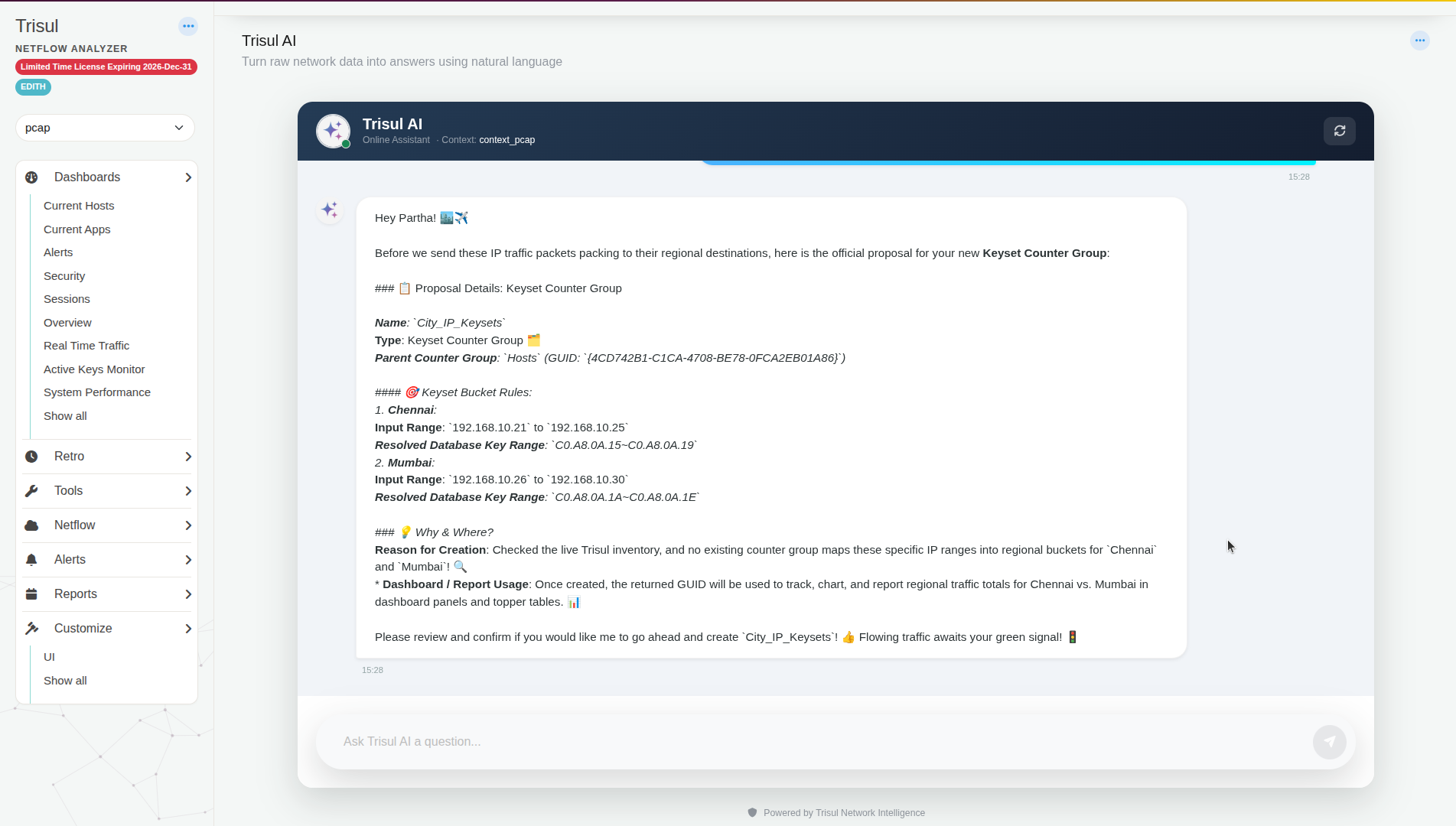
Read the proposal. Trisul AI checks existing counter groups first and only proposes a new one if none fits. The proposal lists:
- Name: for example
City_IP_Keysets - Type: Keyset Counter Group
- Parent Counter Group: the group the keys come from, here Hosts
- Keyset Bucket Rules: each bucket with its input IP range and the resolved database key range
- Name: for example
-
Check the IP ranges. If anything is wrong, say what to change.
-
Reply
ok. Trisul AI creates the counter group and shows its GUID.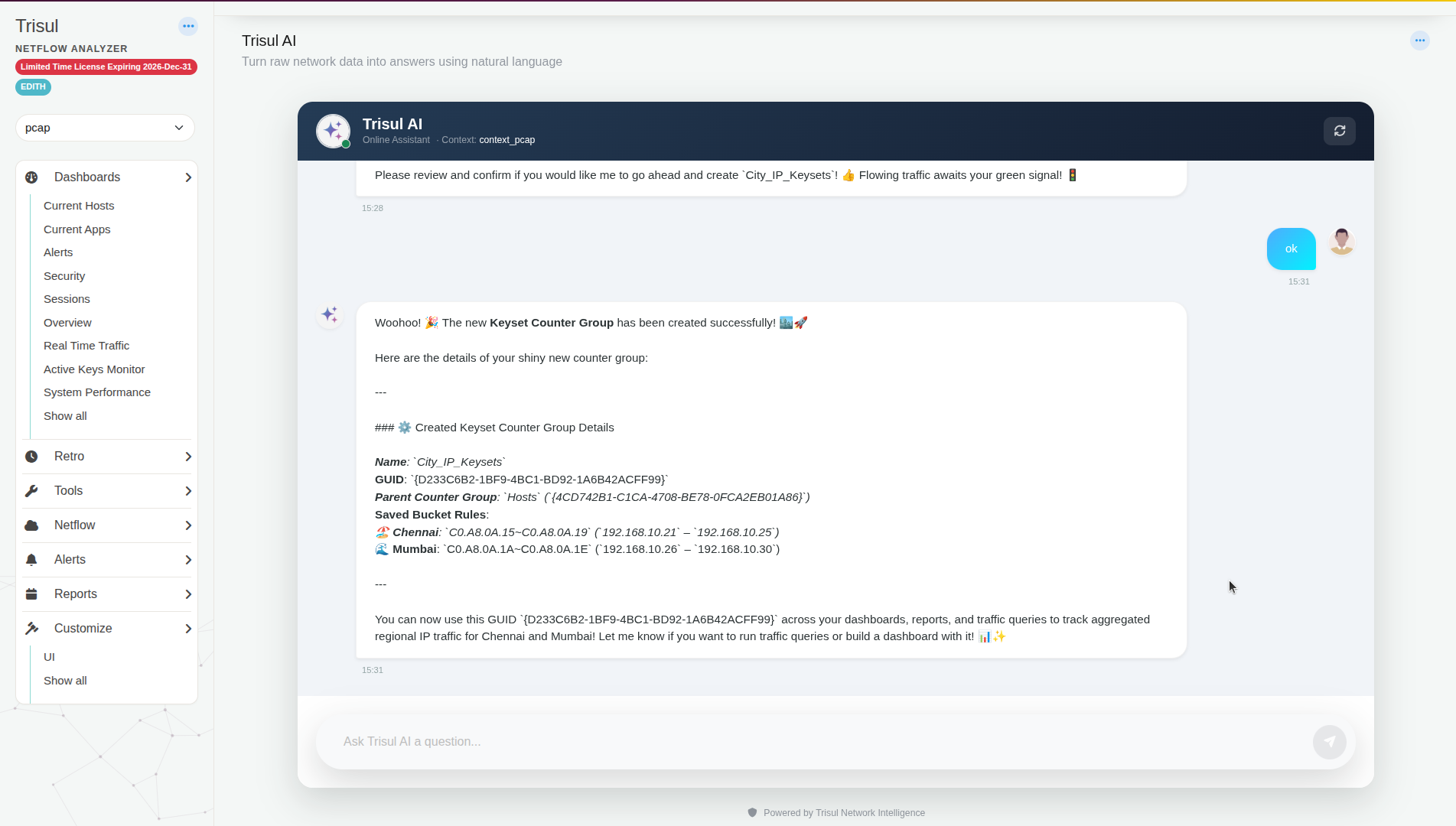
-
Use the new group in questions, reports and dashboards, for example "chart Chennai vs Mumbai traffic for the last hour".
After Trisul AI creates the counter group, restart the context manually (Admin Tasks → Start/Stop Tasks). The new counter group collects data only after the restart.
Related
- What keysets are: Keyset counter groups
- Create one by hand