Ask your first questions
In this tutorial you ask Trisul AI four questions. You get a table, a chart, a list of raw flows and an explanation. Along the way you learn how the chat picks the context and time window.
Time: 10 minutes. Before you begin: an admin has set up Trisul AI, and your context is receiving traffic.
1. Open the chat
- Log in to WebTrisul.
- Select a context in the context list at the top left (for example
netflow). - Open the Trisul AI from the sidebar menu.
The page title reads Trisul AI, with the subtitle Turn raw network data into answers using natural language. The chat header shows Online Assistant and the context the chat is connected to, for example Context: context_pcap.
Type in the Ask Trisul AI a question... box and press Enter, or click the send button.
2. Find the top hosts
Type:
show top 5 hosts
Trisul AI returns a table of the five busiest hosts. Above the table it tells you where the data came from, here the Hosts counter group.
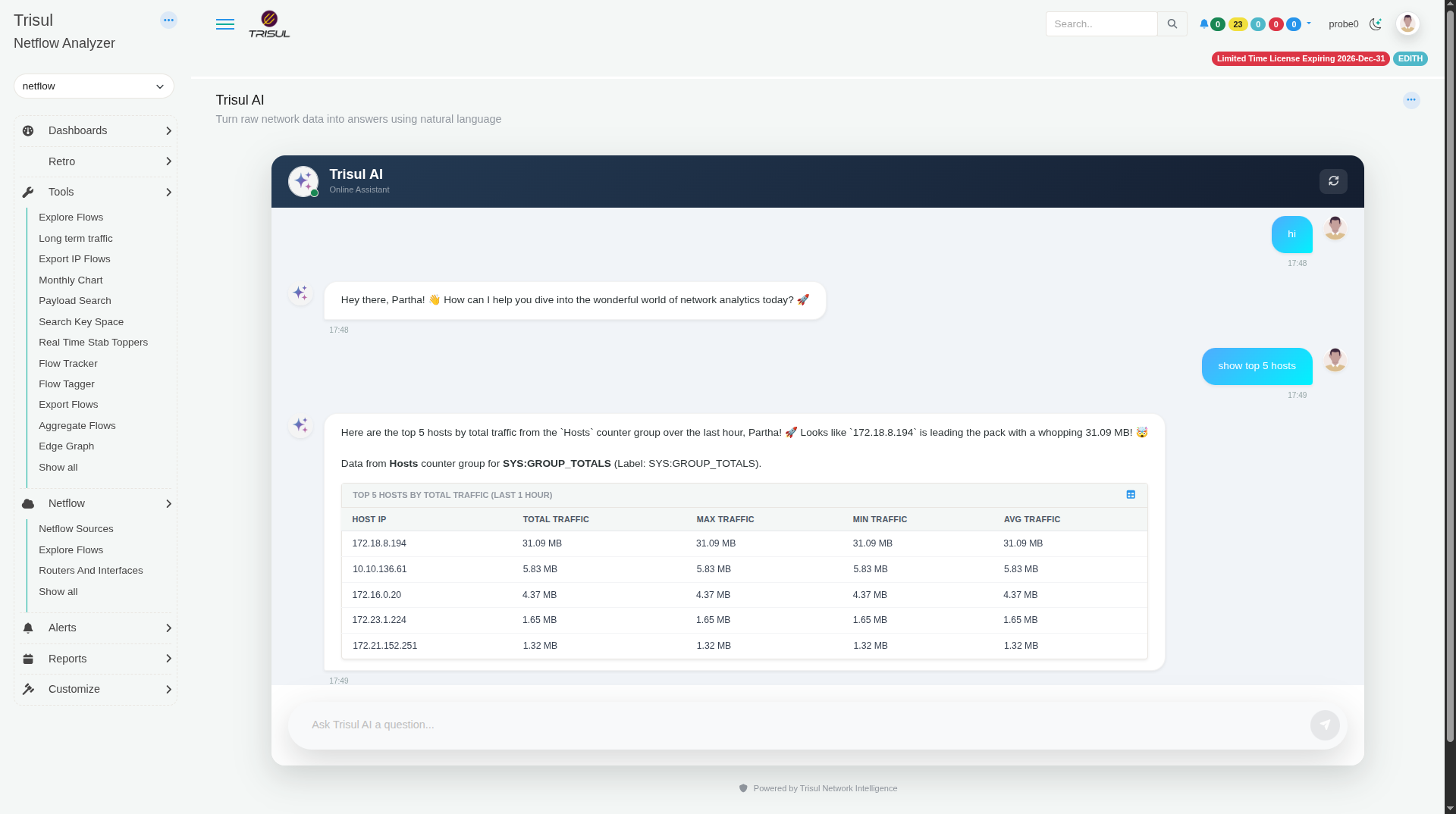
You didn't give a time window, so Trisul AI used the last hour. The table title says so: TOP 5 HOSTS BY TOTAL TRAFFIC (LAST 1 HOUR).
Name the time window to change it: "show top 10 hosts for the last 24 hours".
3. Chart one host
Copy an IP from the table and type:
show the traffic chart of 172.18.8.194 for last 5 minutes
Trisul AI draws a line chart with Total, Received and Transmit lines.
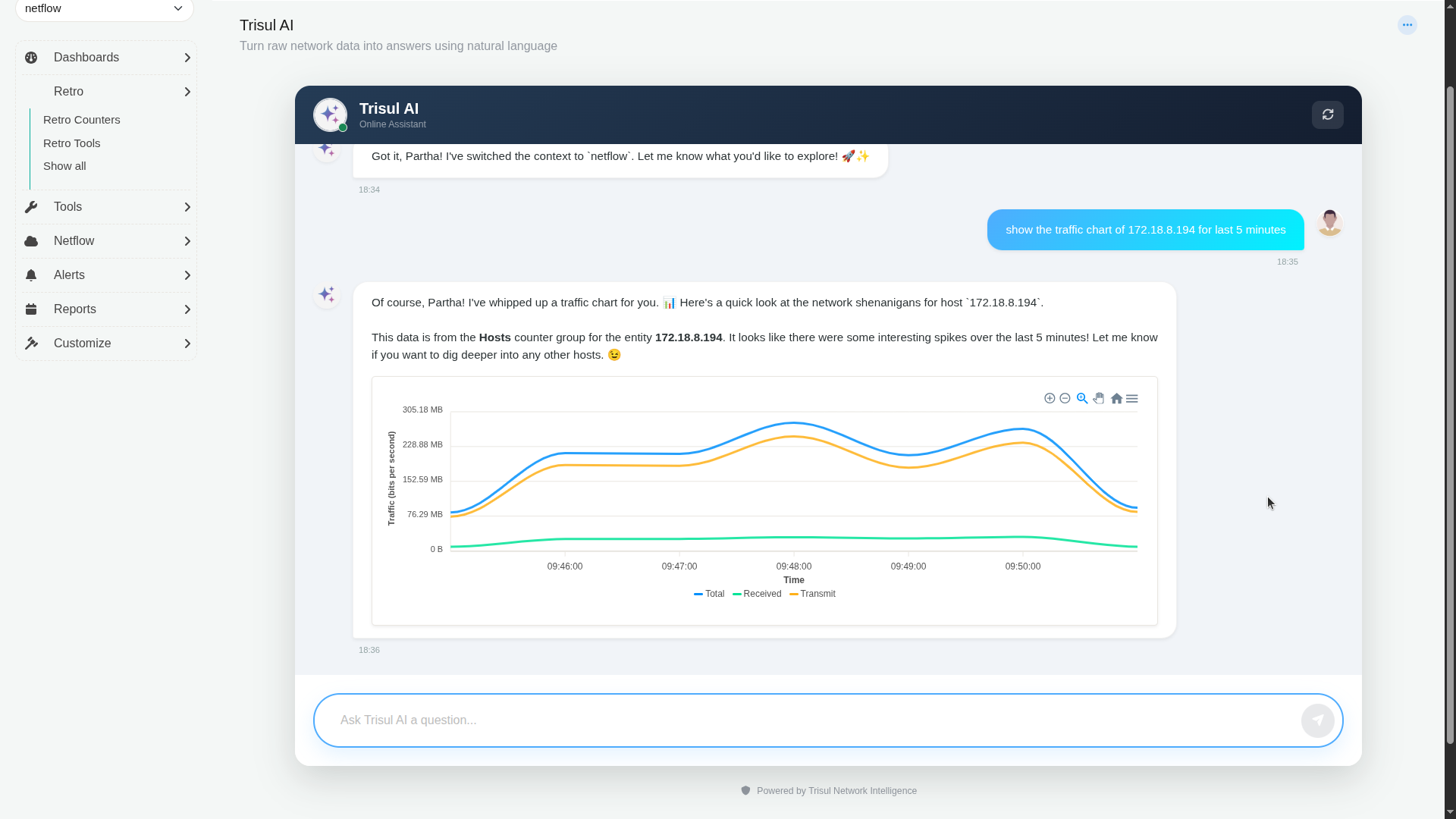
Use the chart toolbar to zoom in, zoom out, select an area to zoom, pan and reset the view.
Charts work for applications too:
show https traffic chart for last 10 minutes
This chart uses the Apps counter group and shows Total Traffic, Into Homenet and Outof Homenet.
4. Look at raw flows
Type:
show the raw flows of last 10 minutes
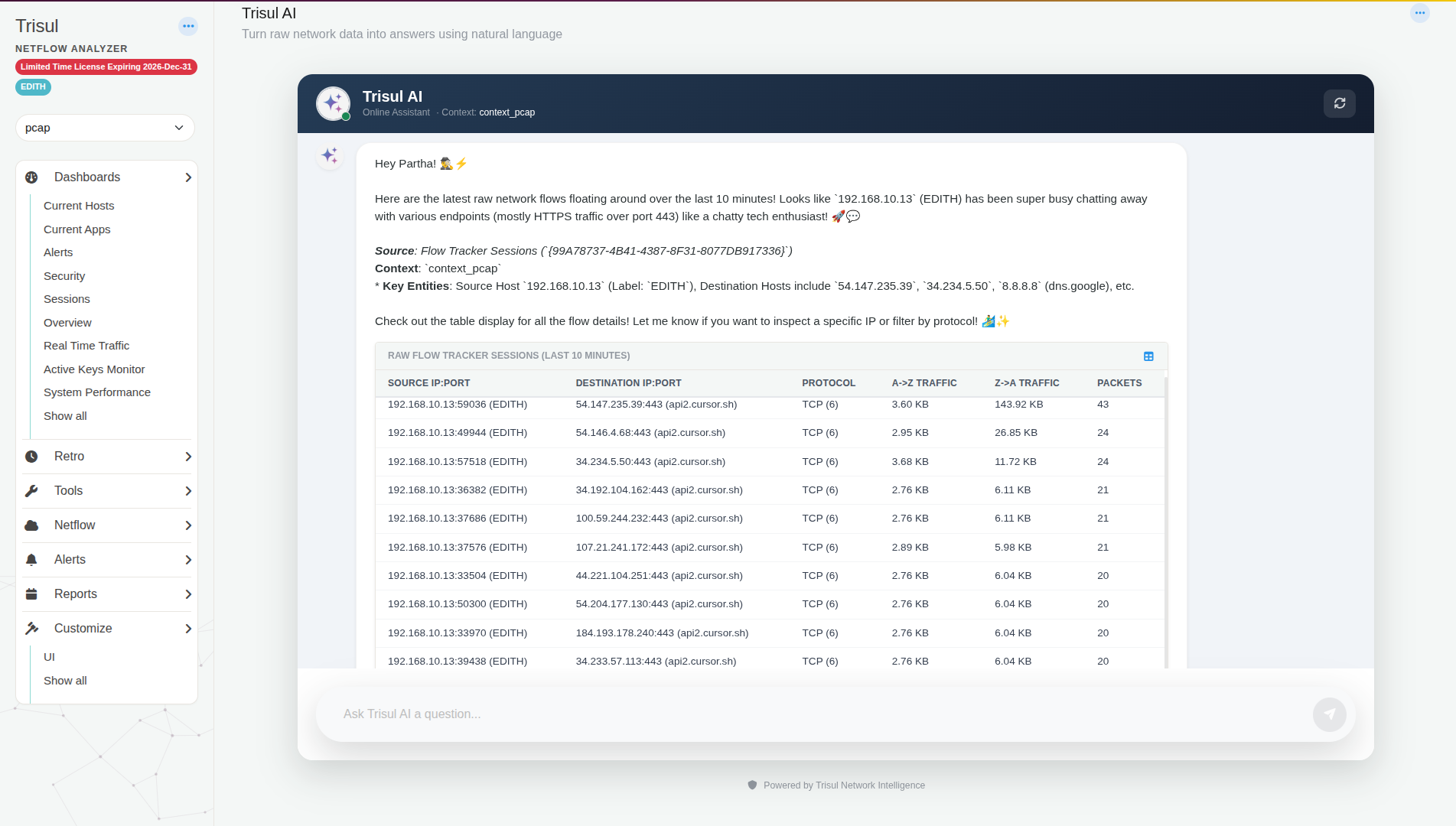
Trisul AI lists individual flows from the Flow Tracker: source and destination IP:port, protocol, traffic in each direction and packet count.
5. Ask about Trisul itself
Trisul AI also answers questions about the product, using the Trisul documentation. Type:
what is key set counter group
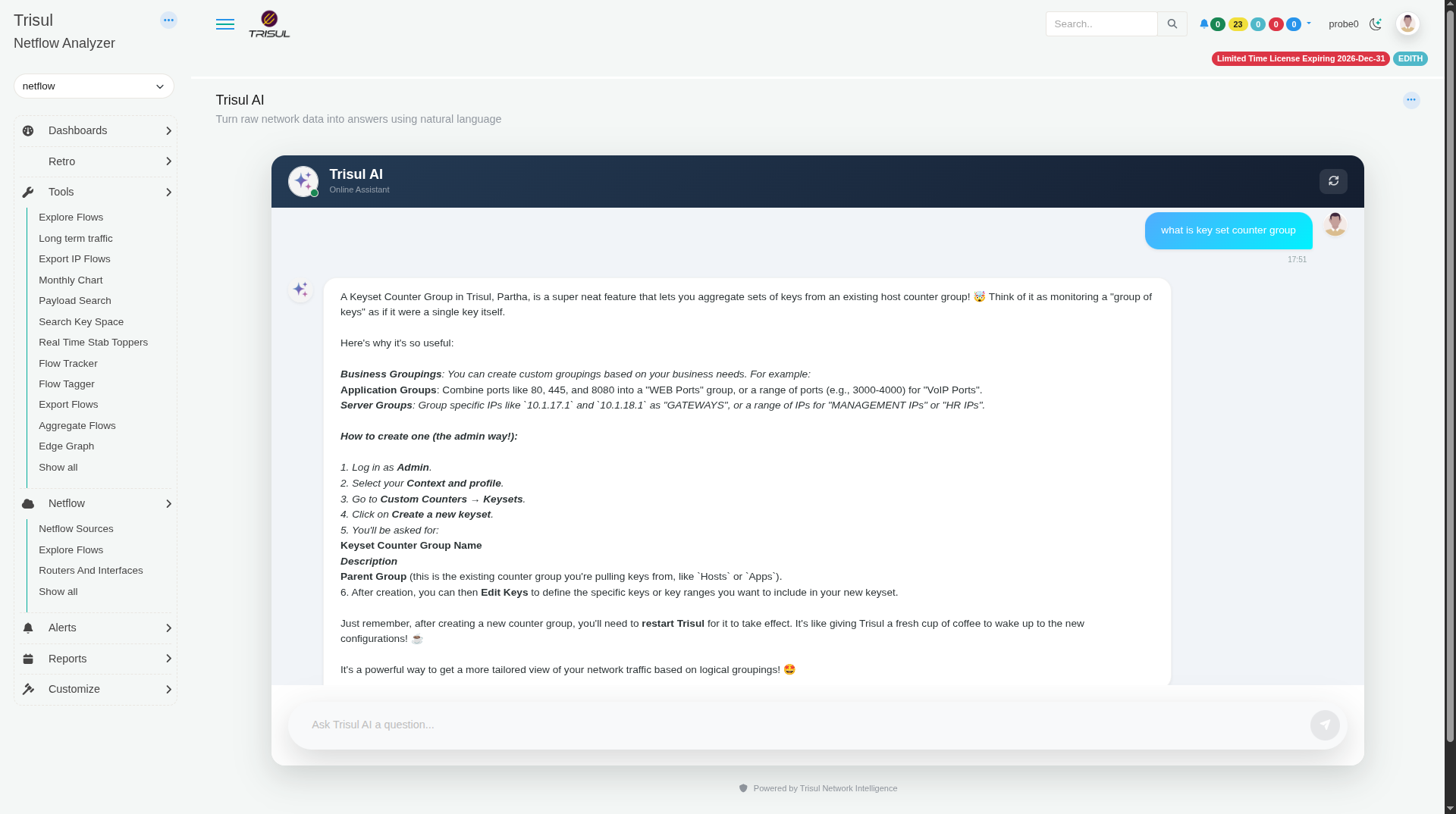
Answers about menus and steps come from the documentation and can be out of date. If a menu path in an answer doesn't match your screen, follow the docs page for that feature.
How the chat chooses context and time
- Context: the chat is locked to the context you selected before you opened the Trisul AI page. Every question uses that context. To use another context, select it in WebTrisul, then open the Trisul AI page again. Don't ask the chat to switch context.
- Time window: if you don't name one, Trisul AI picks a default (the last hour for top-N tables).
- Follow-ups: the chat remembers earlier messages in the same conversation, so "now chart the second one" works.
- New conversation: click the refresh button in the chat header.
What you learned
You asked for a top-N table, a host chart, an app chart and raw flows, and you asked a product question.