Microsoft Teams delivery
Trisul can send alerts to a Microsoft Teams channel through a Teams Workflows webhook URL.
A sample of the alert is shown here.
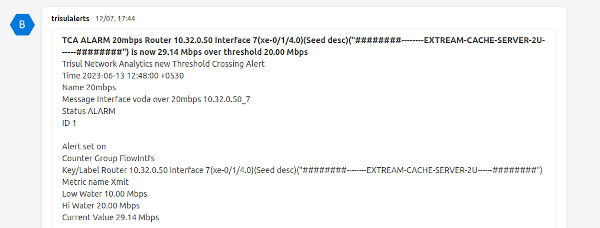
Figure: Alert Sample
Create a Workflows Webhook URL
Microsoft is retiring Office 365 Connectors, so Trisul now uses a Teams Workflows webhook instead of a Connectors Incoming Webhook.
Workflows webhooks need WebTrisul 2626 or later. Earlier releases accept only a Connectors Incoming Webhook URL.
- In Teams, create a channel for Trisul alerts, or pick an existing one.
- Next to the channel name, click More options (…) and select Workflows.
- Select the Send webhook alerts to a channel template.
- Enter a name for the workflow and click Next.
- Check the team and channel, then click Add workflow.
- Copy the webhook URL that Teams shows, then click Done.
Add to App Settings
To activate the Webhook and send alerts to Teams. Login as admin and,
👉 Go to App Settings→ API Keys→ Microsoft Teams Webhook URL
Enter the Workflows webhook URL that you copied in the previous step. The field hint still reads "Enter the Microsoft Teams Incoming Webhook URL". Paste the Workflows URL anyway.
Ensure that the Email Notification Service is running. This service reads the alerts from syslog and sends them out. Email is the default delivery. When the Teams webhook URL is set, each alert goes to email and to Teams.