PCAP Drilldown Methods
Packet capture mode only. These features are not available in NetFlow mode.
This document describes the different ways you can drilldown to raw packet captures from the Trisul user interface. If you are interested in programmatically retrieving PCAPs refer to the Trisul Remote Protocol guide Trisul allows you to directly drilldown into packets from a number of investigation points. The key thing to look for are the following two menu items
- “Download PCAP”
- “Show Headers”
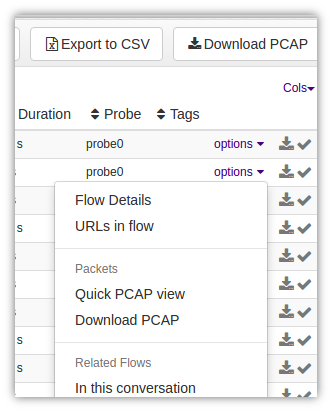
Figure: View PCAP/ Download PCAP Options
Download PCAP
The Download PCAP option can be accessed via two places. You can see both the places in the image shown above.
- the Download PCAP button at the top of any table showing flows, alerts, resources.
- the Download PCAP menu when you click on the “Options” against any single item in the table
When you click on the Download PCAP button at the top of the table
- Trisul brings at once the PCAPs related to all the items shown in the table. It does this by computing a packet query plan first and then pulling and merging all the packets into a single PCAP file. This is a major productivity time saver.
Show Headers
The Show Headers menu item was created to make working with raw packets quicker. When you select this menu items, only the 1st 100K of the requested packet output is selected and shown in three panes.
- Strings : all text strings that can be found are shown
- Hexdump : a hexdump like Wireshark is shown
- Tshark : if tshark is available on the Trisul-Hub node, the per-packet view of the PCAP is shown
See image below

Figure: Show Headers Output
Once you are satisfied you can download the PCAP file and save it for further analysis or problem report.
PCAPs from Flows, Alerts
You can download PCAPs from the following other Trisul data types. In
- flows : Explore Flows results allow you to download PCAP for ANY flow. Not only TCP/UDP.
- alerts : Intrusion Detection alerts allow you get PCAPs for all alerts of a type, or from an IP or any other query.
- resources : Directly jump to Packets from DNS, HTTP URLs, TLS Certificates analysis
- full text search : FTS documents like TLS traffic, HTTP Headers, File extraction. Click on any document and then “Download PCAP”
PCAPs for Particular Keys
For any counter item you can get the PCAPs by accessing the key dashboard and then clicking on “Download PCAP” option. This works for every type of counter, not only TCP/IP flows. Examples
- Key dashboard for Counter Group : Country, Key: CN : clicking on Download PCAP will get you packets from country=China.
- Key dashboard for Counter Group : MAC, Key: 06:b4:83:e3:e3:30 : packets for a MAC address
PCAPs for Anything
If you want to download PCAPs for any timeframe in the past for any criteria, you need to use the Retro Tools > PCAP download tool.
To open the Pull Packets tool:
👉 Go to Retro → Retro tools → Select Timeframe → Pull Packets
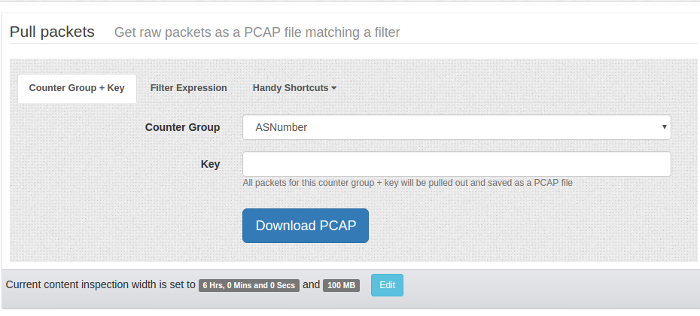
Figure: Pull Packets Form
You have three options here
- Counter Group + Key : select counter group and key to get packets for that item
- Filter Expression : Any arbitrary filter expression in Trisul Filter Format
- Shortcuts : “Get all packets” downloads everything in that selected time. Can be very useful.
Packet Capture Settings
To make the feature usable and resistant to massive download requests Trisul uses two configuration parameters to protect the feature.
| Setting | Default | Description |
|---|---|---|
| Deep Packet Inspection time limit | 6 hours (21600 seconds) | Caps the maximum inspection interval, so you can't start a search over weeks of data. |
| Deep packet inspection size limit | 100 MB | Caps the size of a download. |
both these parameters can be edited from App Settings