Packet Capture FAQ
Packet capture mode only. These features are not available in NetFlow mode.
Quickly see packet contents without pulling out the pcap
In a majority of situations, you can identify what a particular flow is about by examining the initial packets of the flow. Click Show Headers next to a flow to see a text and hex dump of those packets. To get the full PCAP, click Pull Packets and open it in an application like Wireshark.
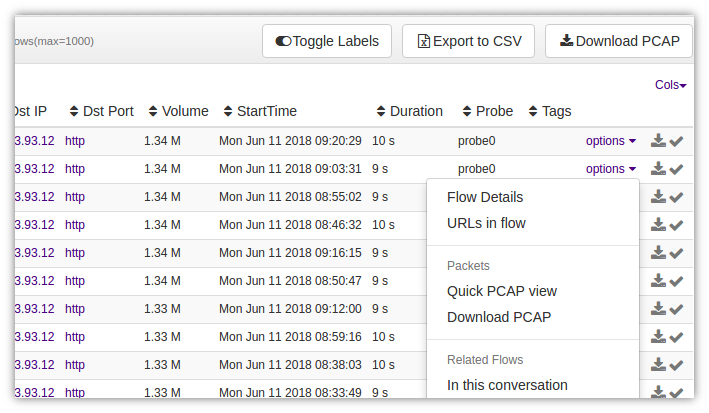
Figure: “Show Headers” for a text and hex dump of packets at top of flow
This is extremely useful for quick analysis of flow packets without leaving Trisul. If you want the entire flow, you can always click on “Download” to get it right now, or “Add to briefcase” to add the PCAP to the briefcase and download later as a single ZIP files.
Disable full packet capture
Set the Ring – Enabled parameter to False, then restart the probe: stop and start it under Context: default → Admin Tasks → Start/Stop Tasks, or run trisulctl_probe restart context <context_name>@<probe_name>. Packet logging will be disabled.
Allocate a fixed 100GB disk space for full packet captures
To store 100×1GB files in the Operational area.
- Locate the Ring – Slice Policy – Operational – SliceCount parameter
- Set the SliceCount to 100
I don't want to store SYSLOG packets because I send them to Splunk
You have to use Rules to exclude the SYSLOG protocols from getting stored. Check out the controlling storage example
I want to find all flows containing a malware payload pattern
Use the payload search tool
How can I change the AES CTR password ?
The passphrase is read from the file specified in Ring – Passphrase File If you change the passphrase, older data is currently not accessible. Trisul will support rekeying of old data in a future release.