Modules
In Introduction to Dashboards and Modules, you learned what modules are and how to view them.
Trisul has an extensive module library including prebuilt modules that has out of the box functionality that you can leverage without needing to develop custom components.
You can also create your own modules using pre existing module templates. Trisul has 17 module templates.
What You Can Do with Modules
This section shows you all the ways you can use and customize modules in Trisul. You’ll learn how to create modules, add a module to the new/existing dashboard, edit/delete/clone a module from the dashboard, and you can also create modules with arithmetic expressions.
Creating Modules
You can add different types of modules in Trisul to an empty dashboard or an existing dashboard.
To create a new module,
👉 In the dashboard's Module Layout→ Click on the Plus icon
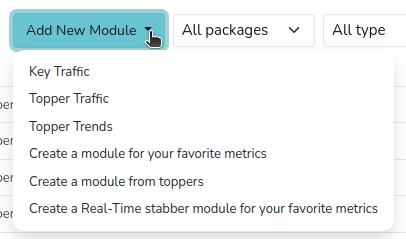
Figure: Add New Module Options
From the list of module types select one and fill out the fields according to the module template you have selected.
Add Modules to a New/Existing Dashboard
To add modules to an empty dashboard, Create a New Dashboard by clicking New in the All dashboards page.
👉 In the Module Layout→ Click on the Plus icon
You can see the list of modules that you can add to the new dashboard here.
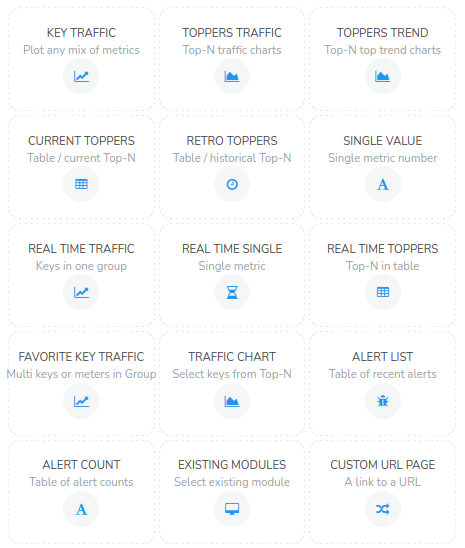
Figure: Module Templates
Similarly, to add modules to an existing dashboard, customize the dashboard using "How to edit a dashboard" section and follow the same steps as adding a module to new dashboard.
Alternatively, open the list of all dashboards (see View Dashboards), click the hamburger icon against the dashboard you want to add the module to, and click Customize.
The module positions can also be rearranged in the layout view field in dashboard customization window. Rearrange them by clicking and dragging the modules to the desired place.
How to Edit a Module
There are more than one ways to edit a module from a dashboard,
Method 1:
👉 Click Customize on the Ellipsis Menu from the dashboard that contains the module.
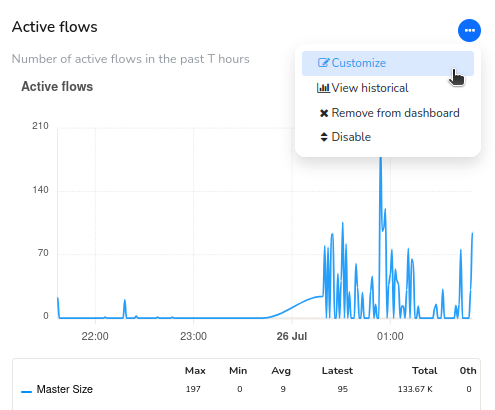
Figure: Customize Module
Method 2:
Alternatively you can also edit it from the list of all modules, Click on the three lines on the right side against the module you would like to edit and click Edit.
Clicking on Customize will take you to customization options based on the type of module selected. To see the parameters for different types of modules, check here: Module Templates
How to Clone/Delete a Module from the Dashboard
If you have observed a module that you would like to add as a new module, you can Clone a similar module to create new module. For that, Go to the list of all modules,and from the list of available modules, Click on the three lines on the right side against the module. Now click Clone and edit the required fields.

Figure: Toolbar Showing Options Clone/Delete a Module from the Dashboard
Similarly to delete a module, click Delete.
Creating Modules with Arithmetic Expressions
You can also create modules with the help of arithmetic expressions. You can combine different metrics together and show in a module.
Metrics are numbered 1, 2, 3 and so on. Supported operators are +, -, *, %, / and (). The % operator means "as a percentage of".
For eg. Add two Metrics, You have to enter arithmetic expression as (1+2),(3-4) or Metric 1 as a percentage of 2 and 3 as 1%(2+3)
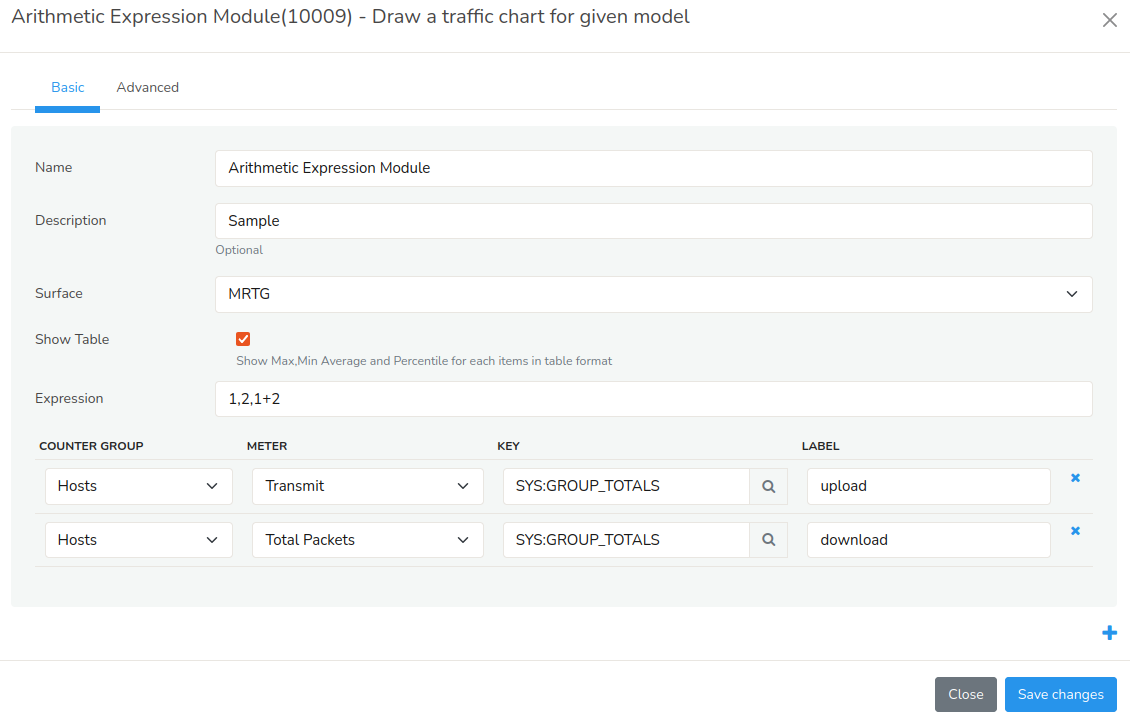
Figure: Form to Create a Module Using Arithmetic Expression
A custom module dashboard with arithmetic expressions will look like this.
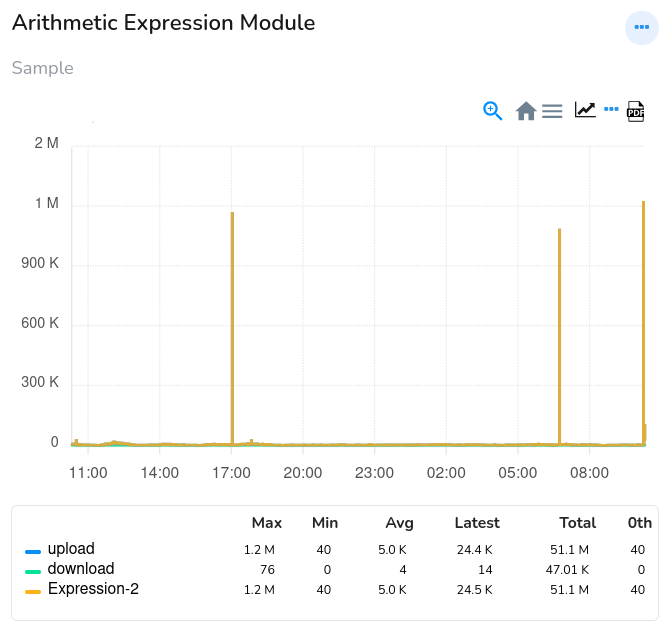
Figure: Arithmetic Expression Module