Manage Keys
Manage Keys allows you to view and manage the keys on Trisul platform.
View Keys
👉 Go to Context: default → Profile0 → Manage Keys
Here you can see the keys in each counter group and manage them.
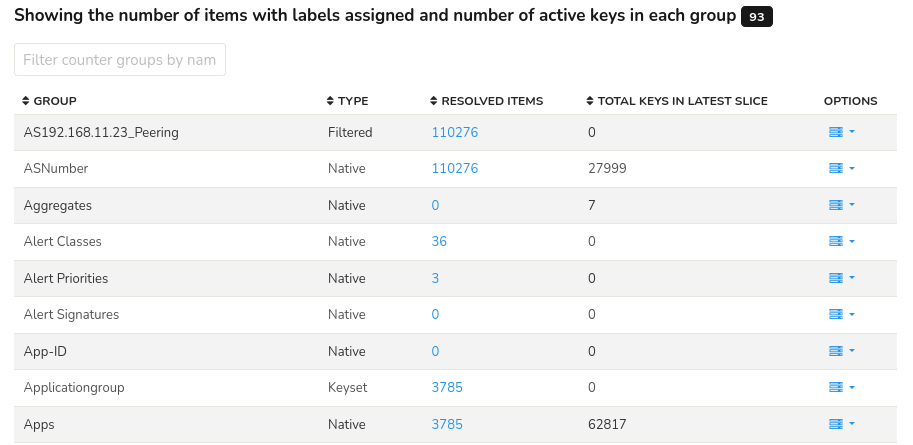
Figure: List of Keys
The header of the table shows the total number of keys on the platform highlighted in black (in figure: 93 keys). The table of list of keys contains the following details and options.
| Column | Description |
|---|---|
| Group | The name of the Countergroup that the keys belong to. |
| Type | Indicates the type of countergroup that the keys belongs to. |
| Resolved Items | Number of items that have been resolved in that countergroup. |
| Total Keys in Last Slice | The total number of keys in the last slice. |
| Options | Options that can be performed on the keys. |
Note that each column in the table is sortable for flexible data analyses.
Options
Click the Option button against a counter group to act on its keys. The actions include the following.
| Options | Description |
|---|---|
| Show recently active | Shows the most active keys on that countergroup. |
| Import from CSV | Upload a CSV file to add a key to that countergroup. |
| Export to CSV | Download the keys on that countergroup in the CSV format. |
| Clear all attributes | Resets all the attributes of the keys. |
View Resolved Items
Click on the number on the resolved items column to see the specified number of list of resolved keys.
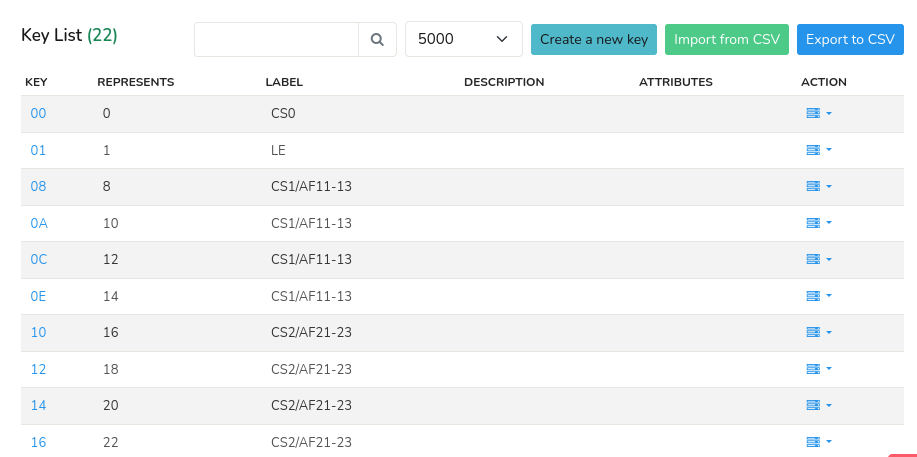
Figure: List of Resolved Items
| Column | Description |
|---|---|
| Key | Unique identifier for resolved key. |
| Represents | Indicates which item is the label representing. |
| Label | Human readable name for the key. |
| Description | A short description of the resolved key. |
| Attributes | Attributes associated with the resolved key. |
| Action | click on the action button to edit the properties of the resolved key. |
- Use the Filter bar located on the header of the table to filter a particular key or label.
- Select a value from the Page dropdown box located on the header to specify the number of items to display per page.
- Click on Import from CSV button on the upper right hand side to upload a CSV file and add a key to the list.
- Click on Export to CSV button on the upper right hand side to download the list of keys in CSV format.
Create a New Key
Click on the Create a New Key button to add a new key to the list and fill the form with the help of following details.
| Field | Description |
|---|---|
| Key | Unique identifier for the key. Counter groups generate statistics against this key. |
| Name | A user friendly name for this key. |
| Description | More information about this entity. |
| Valid From | Select a time from the calendar where statistics before this time are not shown. |
| Attributes | Enter one attribute per line for the key. |
And click Create.